WhatsApp
Zellbox integrates with WhatsApp Business so each customer has a thread you can read, reply to, and send template messages from. The inbound side is webhook-driven; outbound is real-time via Meta's Cloud API. Threads open as full popups from the WhatsApp button on each customer row — there is no Messages tab inside the inline customer detail, so the list stays visible behind the conversation. Unanswered inbounds also surface on the dashboard's Waiting for your reply card for operators with the WhatsApp-manager CRM role.
Sending a message
- From the Customers list, click the WhatsApp button on the customer's row.
- The chat popup opens.
- Type into the composer at the bottom.
- Click Send, or hit Enter.
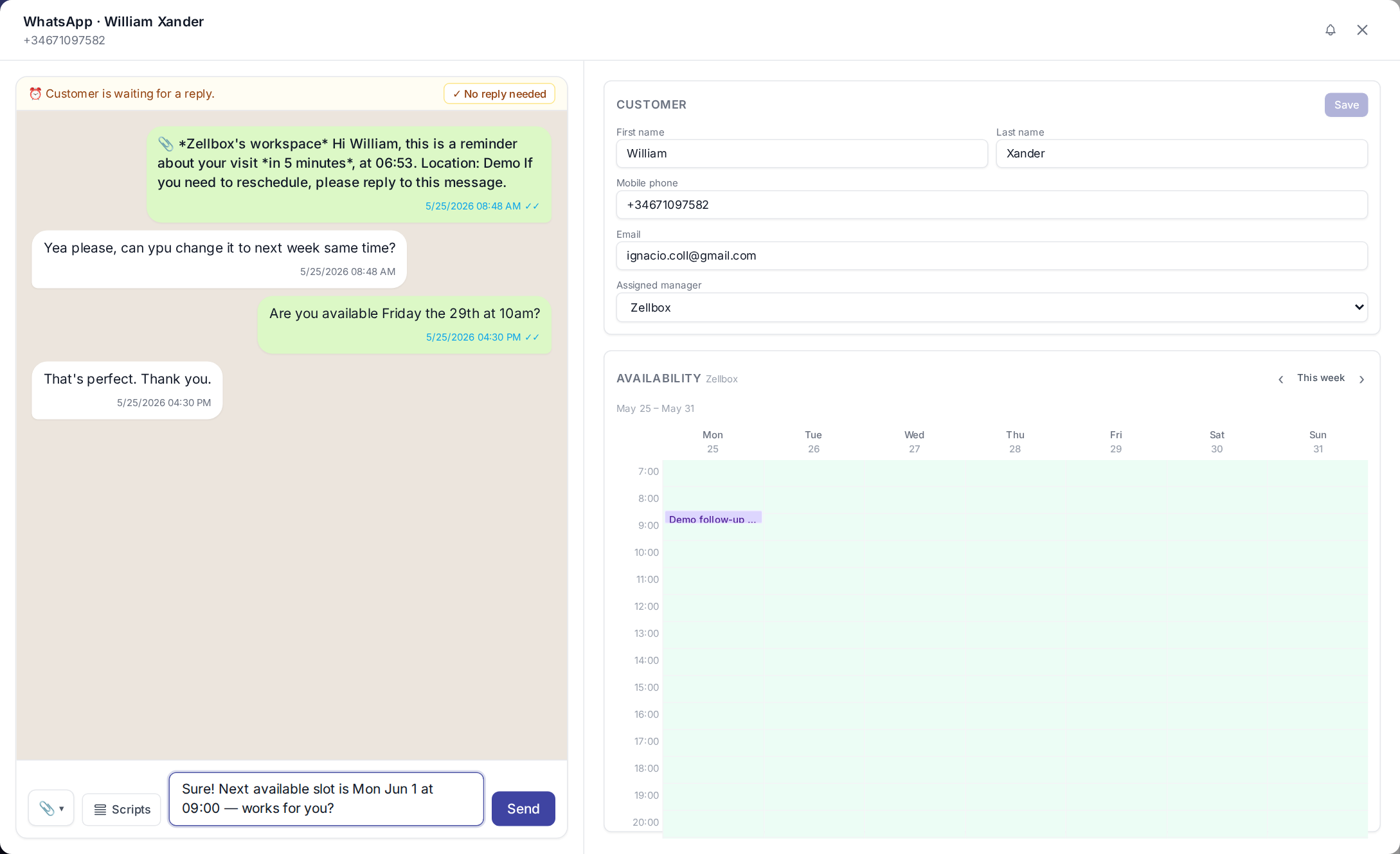
The button is disabled if the customer has no mobile phone on file or hasn't been opted in (toggle opt-in on the customer's Consents tab once they've explicitly agreed).
Sending attachments
The paperclip on the composer opens the 3-source picker:
- From your computer — direct upload.
- From workspace documents… — pick from Documents.
- From this customer's documents… — pick from this customer's files.
Using a script
Scripts are pre-written snippets organised in a tree, useful when an operator wants to send a polished message without re-typing it every time. They support customer-only placeholders like {{customer.firstName}} and {{customer.lastName}} — see Allowed variables for the full list.
- In the composer, click Scripts.
- Pick a snippet from the script tree.
- The composer pre-fills with the resolved text (placeholders replaced with the customer's data). Edit if needed.
- Click Send.
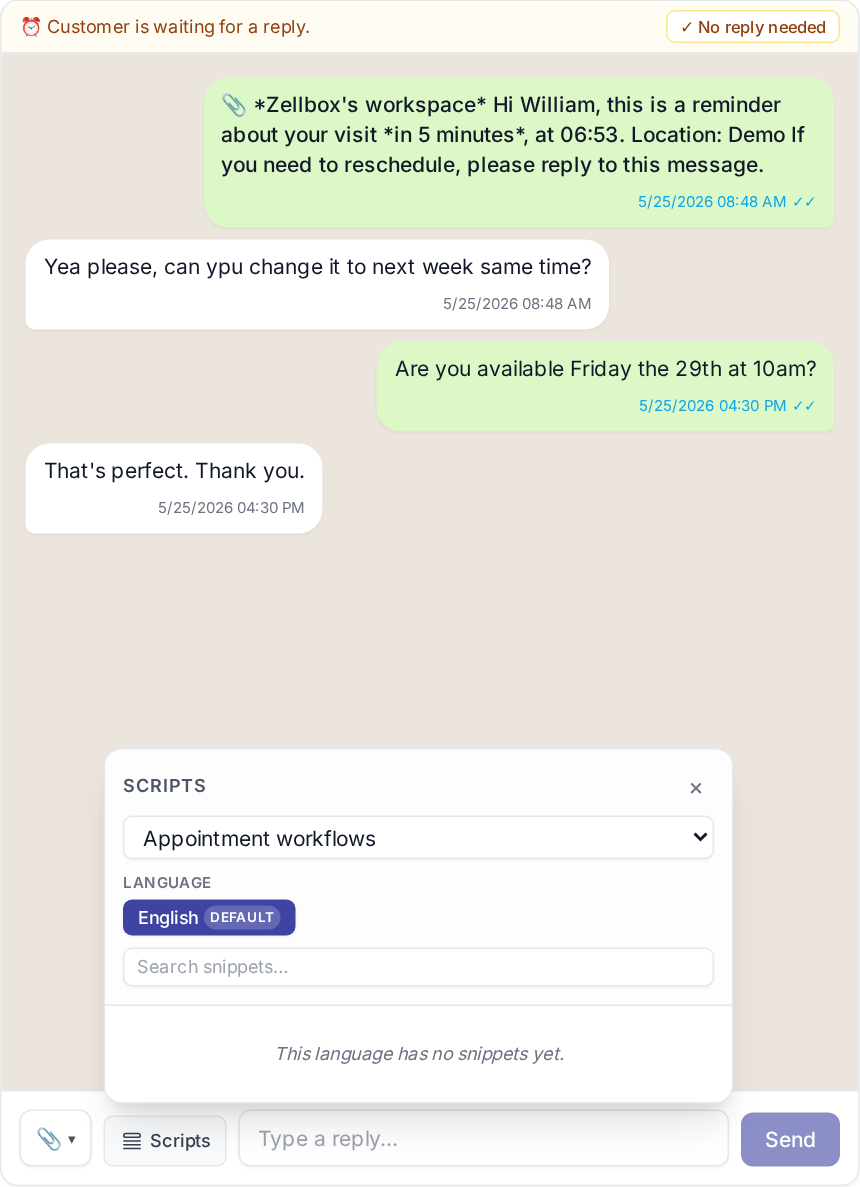
Scripts are managed under Templates → WhatsApp scripts.
Clearing a pending-reply state
When the customer's last inbound doesn't really need a reply (e.g. they just said "thanks, see you Tuesday"), click ✓ No reply needed at the top of the thread. The customer drops off the dashboard's pending-replies list.
The state auto-resets the next time the customer sends an inbound — the dashboard re-arms the row automatically.
How Meta's reply rules apply
The Dashboard's WhatsApp reply rules panel summarizes this:
- Inside the 24-hour customer-service window — any text, image, or document can be sent freely from the composer.
- Outside the window — only Meta-approved templates (and the scripts bound to them) can re-open the conversation. The composer prevents free-text sends in that state.
- Opt-in required — the customer must have toggled WhatsApp opt-in on their Consents tab before any outbound is allowed.
Approved templates
The Templates → WhatsApp templates page is a mirror of every WhatsApp template approved (or pending / rejected) for your Meta account, with a Workflows tab + per-locale preview pane. It refreshes from Meta on a schedule, and admins can poke a manual refresh from the toolbar. The Meta connection itself is set up at the workspace level by Zellbox staff.
Appointment reminders
Zellbox automatically sends a WhatsApp reminder ahead of each calendar event whose customer is opted in. The fan-out picks one of three Meta-approved platform templates based on the visit's shape:
| Visit shape | Template |
|---|---|
| In-person / phone with a location | zellbox_appointment_reminder (location pin in the body) |
| Phone visit, in-person without location, or virtual without a Meet link | zellbox_appointment_reminder_simple |
| Virtual with a Google Meet link | zellbox_appointment_reminder_virtual (Join meeting button) |
The reminder body reads natively in the customer's preferred language — "Hola María, La teva neteja dental amb la Dra. Puig està programada per a avui a les 14:30" — across all 12 launch locales (English, Spanish, Portuguese-BR, Hindi, Indonesian, Italian, Catalan, German, French, Turkish, Arabic, Filipino). Language picked per customer: customer.language → workspace default → English fallback. See Templates → WhatsApp for the variable contract.
Reminder offsets are configured per workspace under Account → General → Default WhatsApp reminders. Past-due offsets at the moment an event is created get auto-handled: offsets more than 60 minutes past their natural fire time are dropped, and several close-but-late offsets coalesce into a single send so the customer never receives duplicates.
What you see vs what the customer sees
The chat popup on the customer detail page now renders messages the way the customer's real WhatsApp client does:
*bold*/_italic_/~strikethrough~/`monospace`render as proper formatting, not literal asterisks.- URLs auto-link.
- Template messages show their header as a bold mini-row above the body, the footer in smaller lower-contrast text below, and any buttons (Join meeting, Call us, Quick reply) as tap-able chips under the bubble. URL and phone-number buttons are clickable from the operator's side so you can verify destinations.
So you can be confident the bubble you see in the popup is what your customer is reading on their device.