Appearance
Google sync
The Google sync page is the troubleshooting surface for the Calendar and Email integrations. Each operator manages their own connection — there's no shared workspace-wide Google account. The page shows your Google email + a status pill per scope (Calendar, Gmail), the last successful sync timestamp, and the most recent sync error.
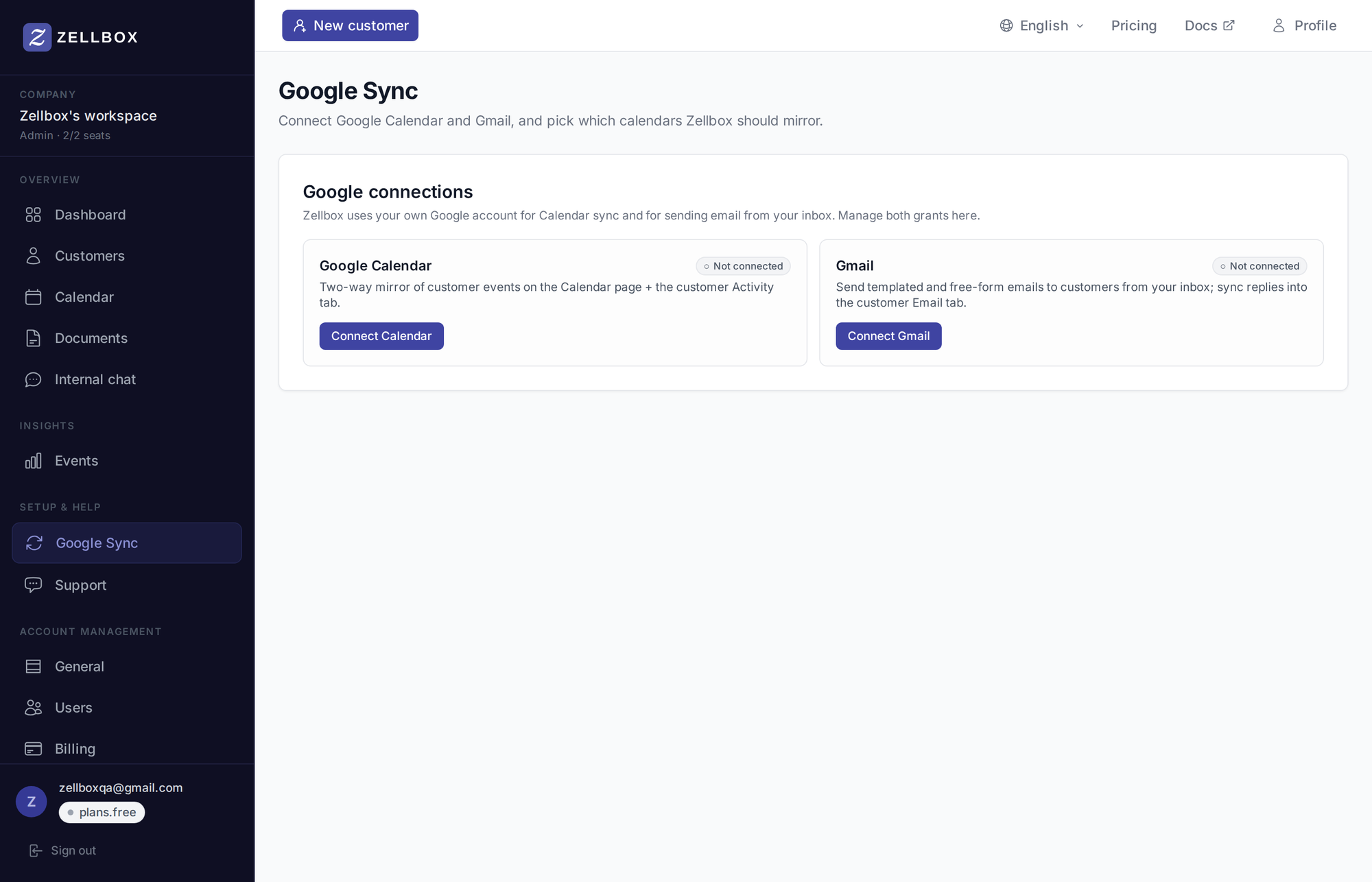
Checking if you're connected
The status pills next to your Google email show whether each scope is connected:
- Calendar — connected / not connected
- Gmail — connected / not connected
If a scope is missing, the matching Connect button starts a fresh OAuth flow scoped to just that grant (incremental authorization — granting Gmail won't re-prompt for Calendar).
Seeing what's failing
The Last sync error line surfaces the most recent failure Zellbox recorded against your account. For per-calendar detail, click the View sync history → link directly under the Google Calendar status — it opens the Sync status history page, where you can filter by time window, see how many events each run touched, and drill into individual calendars.
Disconnecting
Click Disconnect. Zellbox marks your token revoked and stops syncing. Your existing event mirror stays intact (so historical data is preserved); you just stop receiving new updates.
The button is reversible — click Connect any time to re-authorize.
Reset calendar data — the nuclear option
The Reset calendar data button (red, near the bottom) is a last resort when data drift has accumulated and a clean re-sync is easier than chasing edge cases.
What it does:
- Revokes your Google grants (both Calendar and Gmail).
- Permanently deletes every event owned by you — events mirrored from Google, events created in Zellbox, and local-only events.
- Permanently deletes every reminder pointing at those events.
- Clears your calendar-sync state (selected calendars + cached sync history) so a reconnect starts from a clean slate.
What it does NOT touch: your Google Calendar / Gmail on Google's side (no Google delete API is called), your customers, internal notes, email history, customer documents, team members, or email templates.
This is destructive — but reversible per-event for 90 days. The confirmation prompt makes you type RESET in capitals before the Reset button enables, and it ends with the safety-net line: every event Zellbox is about to wipe is automatically snapshotted to the backup table first. You have 90 days to restore any of them individually from Account → Recovery — restored events come back as Zellbox-only and are not re-pushed to Google automatically. After the action, click Connect to re-authorize and Zellbox seeds your calendars from scratch.
After reset, the following are NOT preserved on the freshly re-synced events (you'd need to use Recovery to pull them back individually):
- Per-event overrides (Meet URL, visit mode, phone number, custom reminders)
- Zellbox-created events that were never pushed to Google
- Customer ↔ event links are only restored when the customer is on the Google invite's attendee list at re-sync time