Team
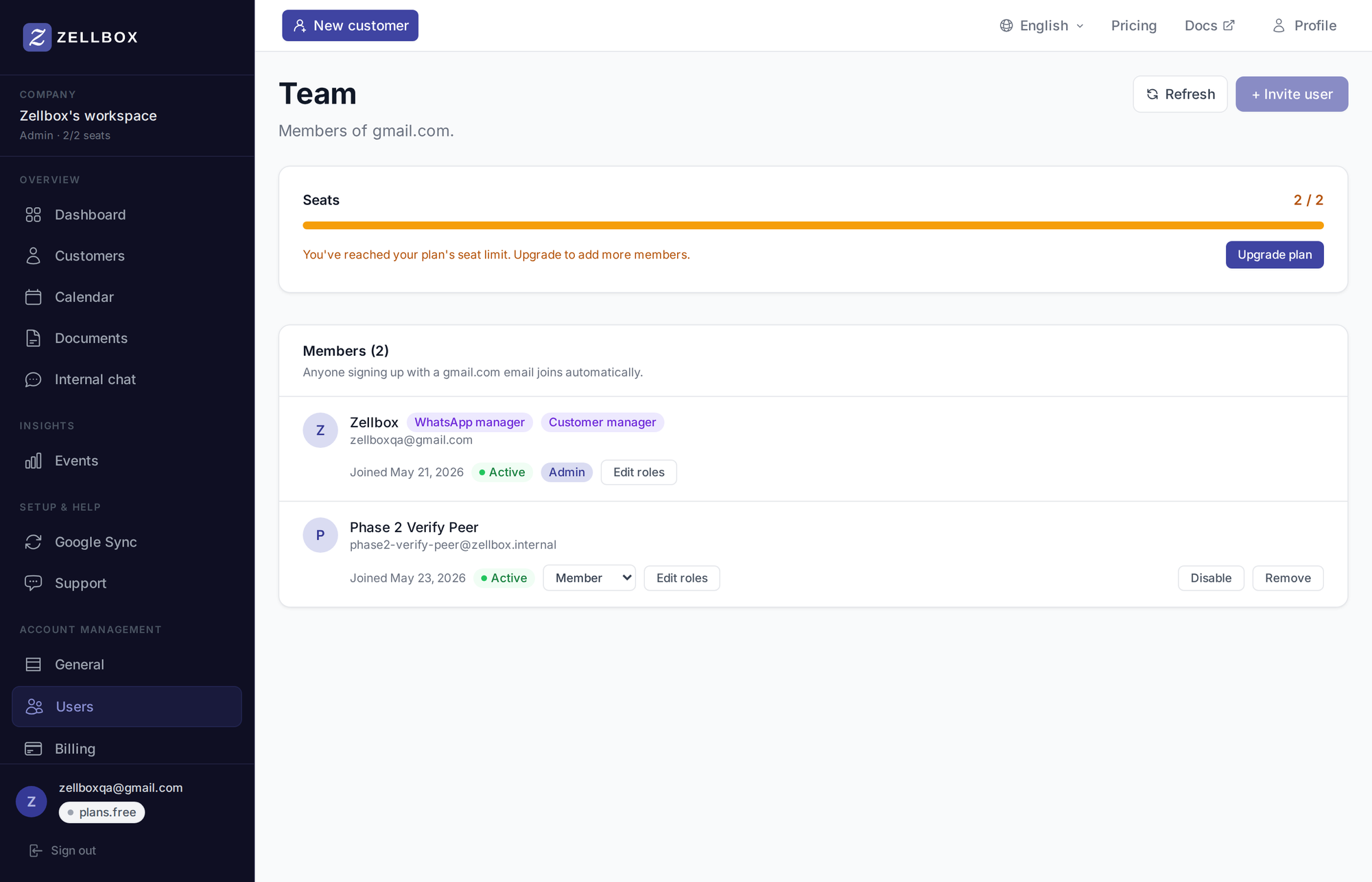
The Team page is where you invite people, assign roles, and see who's in the workspace. Admin-only. The bar at the top of the page shows current seat usage against your plan — when you hit the cap, the + Invite user button is disabled with a "seat limit reached" hint; bump the plan from the Plan card on Account → General or remove an unused member to free a seat.
Note: the invite-time cap check happens in the browser. The authoritative check runs when the invitee clicks the sign-up link — a stale invite created before hitting the cap will still be rejected at accept time if the seat isn't available.
Inviting a teammate
- Click + Invite user in the page header.
- Enter their email address.
- (Optional) add a personal message that goes into the invite email.
- Click Send invitation. They receive an email with a sign-up link that drops them straight into your workspace.
The new member lands as a member role by default. Promote them to privileged from their row after they accept.
Changing someone's role
In the members list, click the role chip on the member's row and pick the new role from the dropdown — the choices are privileged and member. The change is immediate.
The admin role can't be reassigned from this dropdown; every workspace has exactly one admin (its creator) and admin transfer is a separate flow — contact support if you need to change it.
CRM-role assignment (Customer manager / WhatsApp manager) is on the same row, separate from the system role — toggle per-member as needed.
Disabling vs removing a member
- Disable — preserves the member's row (they stay visible to admins) but blocks them from signing in. Use when a teammate is on leave or on hold. Doesn't free a seat.
- Remove — removes the member from this workspace; their Zellbox login stays (they can be invited again later) but they're no longer here and the seat is freed.
Both actions live in the Actions group on the right of each member's row.