Appearance
Customer fields
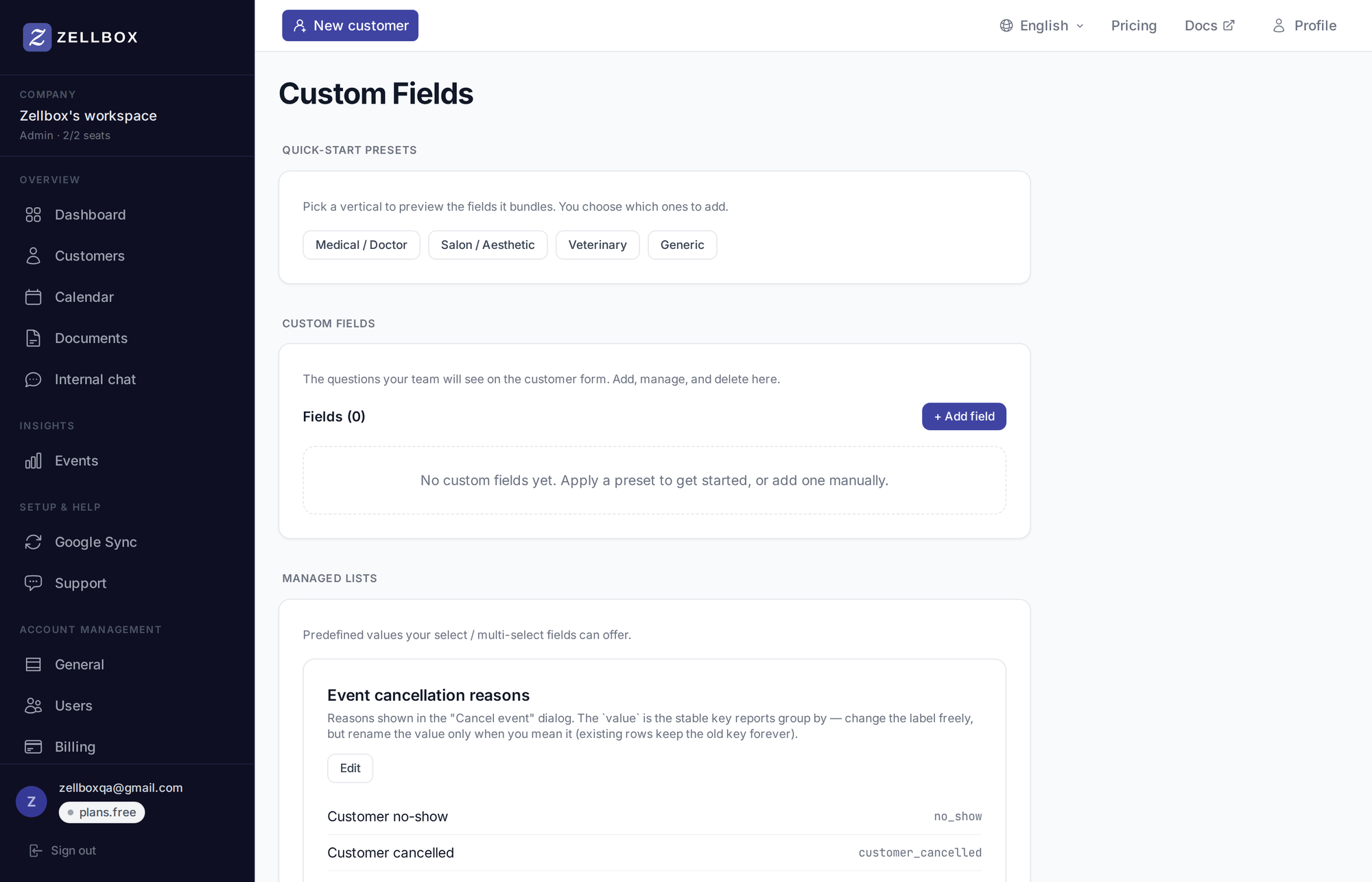
The customer profile is a mix of built-in fields (first/last name, phone, email, address…) and custom fields you define for your workspace. The Custom Fields admin page (under Configuration → Custom Fields in the sidebar, route /settings/config) is where you manage the custom side. The page stacks three sections vertically: Presets, Custom fields, and Managed lists (the pick-lists described in Reference → List values).
Presets
Zellbox ships a few field presets — bundles of custom fields typical for a workspace's industry — that you can apply to seed a schema in one click:
- Medical — allergies, conditions, medications, etc.
- Salon — services preferred, skin/hair type, sensitivities.
- Veterinary — pet species, breed, weight, vaccinations.
- Generic — a small, neutral baseline.
Click a preset to add its fields to your schema; you can rename, reorder, or delete any of them afterwards.
Adding a custom field
- Open the Custom Fields page from the sidebar.
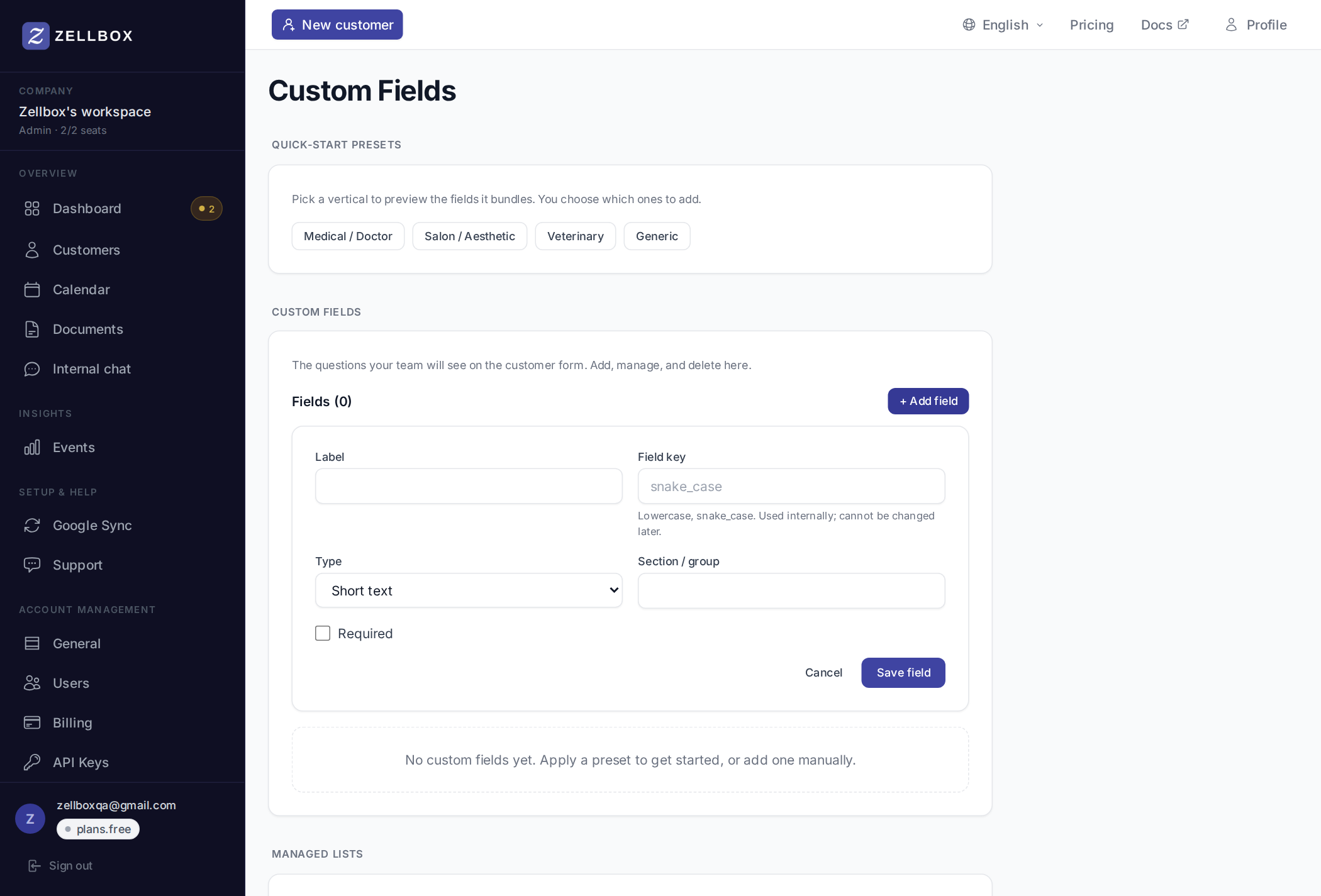
- Scroll to Custom fields → click + Add field.
- Fill:
- Label — what operators see ("Allergies").
- Type — one of: short text, long text, number, email, phone, URL, date, date+time, yes/no, dropdown (single choice), multi-select.
- Options (for dropdown / multi-select) — the picklist.
- Required — must be filled on save.
- Section — optional grouping label on the form.
- Click Save.
The field appears on every customer's profile under the Additional tab on the customer form.
Reordering, renaming, removing
- Drag the row's grab handle to reorder.
- Click a row to edit label / type / options / required.
- 🗑 on a row removes the field. Already-stored customer values for the deleted field stay on each customer's record (orphaned) but no longer surface in the UI.