Email
Email lives per-customer in Zellbox. Outbound goes via your own Gmail account when you've connected Gmail; otherwise Zellbox sends on your behalf from its own outbound mailer. Inbound to Zellbox's receiving address is matched against the customer's email and appended to the right thread. Threads open as a popup from the Email button on each customer row — there is no Emails tab inside the inline customer detail. Unanswered inbounds also surface on the dashboard's Waiting for your email reply card (visible to every operator). Reusable bodies + attachments live on the Email templates admin page.
Sending an email
- From the Customers list, click the Email button on the customer's row.
- The email panel opens.
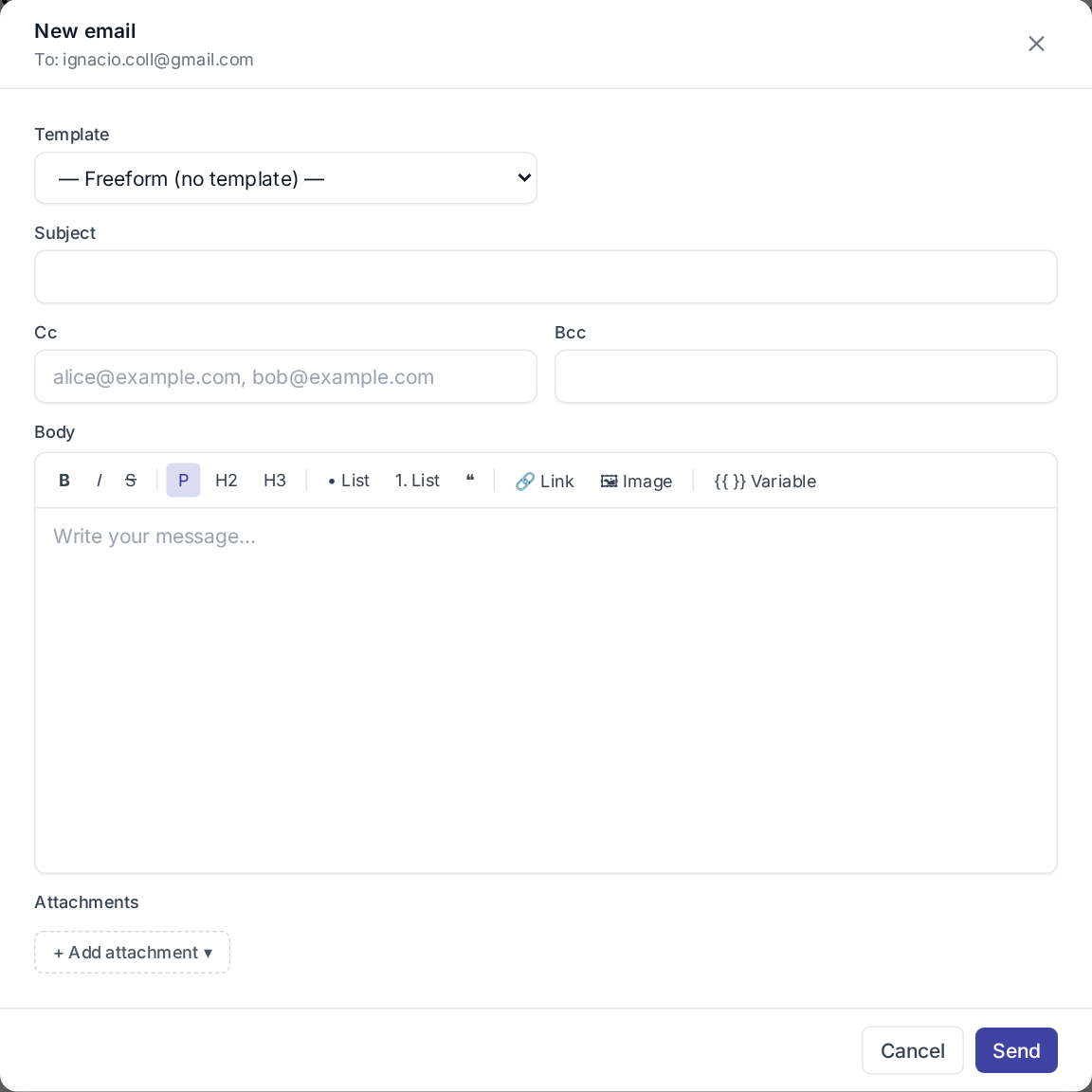
- Click + Compose at the bottom.
- Pick a template from the Template dropdown (or leave it as "— Freeform (no template) —" for a hand-written email).
- If you picked a template, the Subject + Body are pre-filled with the resolved variables; edit as needed. CC + BCC are optional and start collapsed.
- (Optional) attach files via the paperclip — same 3-source picker as everywhere else.
- Click Send.
The thread refreshes; the new message lands at the bottom.
Replying to an email
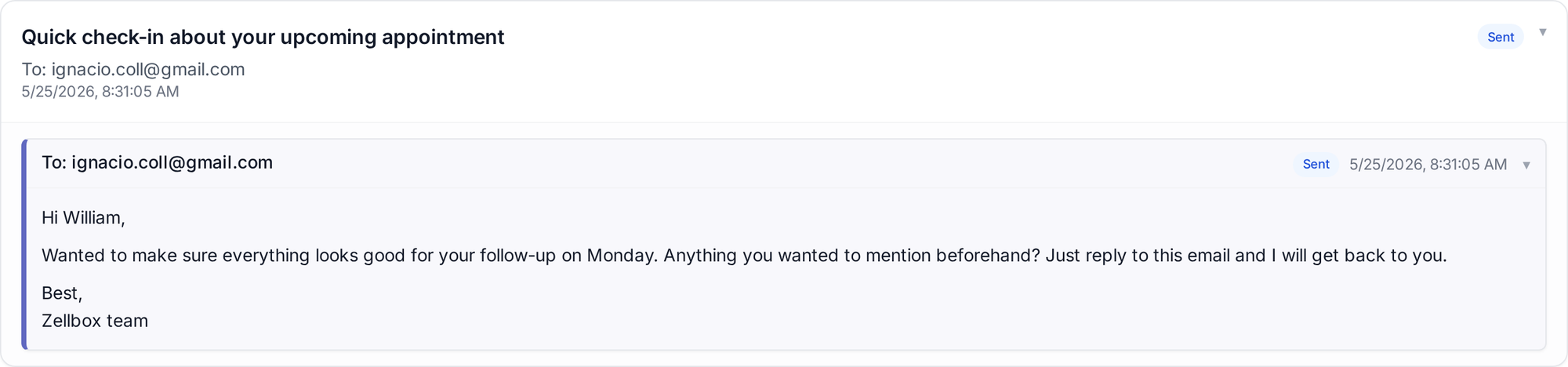
Each message in the thread has a Reply affordance. Click it → the composer opens pre-filled with To: + Subject (Re: …) + quoted history. Edit + send the same way as a new email.
Attaching a document
The paperclip on the composer opens the 3-source picker:
- From your computer — direct upload.
- From workspace documents… — pick from Documents.
- From this customer's documents… — pick from the customer's files.
Each attachment chip can be removed with × before sending. Each attachment is capped at 25 MB — larger files are rejected at the upload step.
Inbound
Inbound email is captured two ways:
- Gmail sync — when the operator has connected Gmail, Zellbox checks their inbox on a schedule, picks up messages matching any of the workspace's customers (by From address), and appends them to the right thread.
- Zellbox inbox — for workspaces that haven't connected Gmail, Zellbox captures inbound to the workspace's configured address and routes it to the matching customer.
Saving inbound attachments
Each Gmail-source attachment on an inbound message shows as a chip under the body. The download button on the left of the chip fetches the file straight from Gmail. Next to it is a ▾ split:
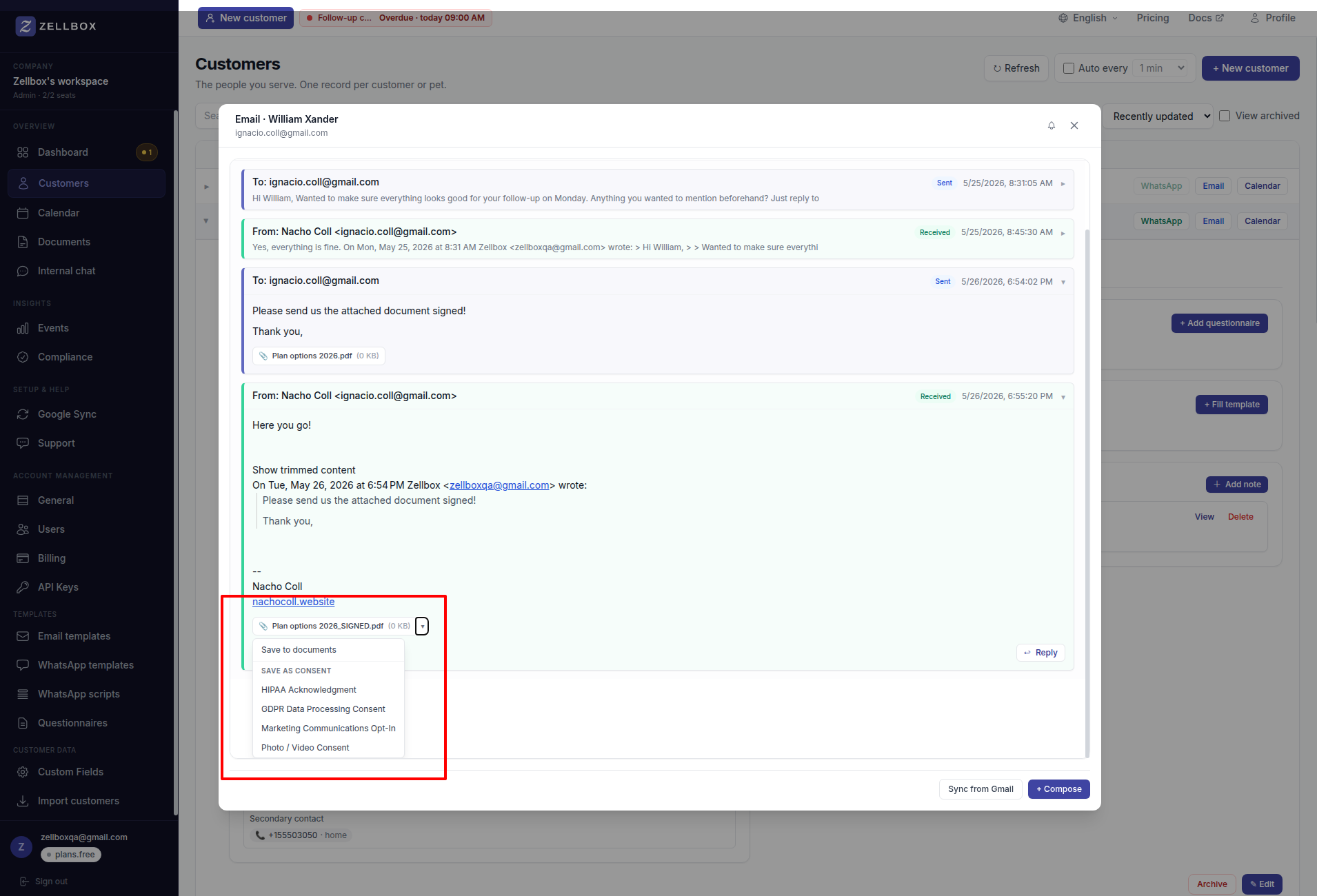
- Save to documents — uploads the attachment into the customer's Documents library. The new row notes the originating email so you can find the provenance later.
- Save as consent: {type} — saves the file as above and records a signed Consent of that type for this customer in one click. The taxonomy comes from the catalog admins manage in Account → General → Consent types; this is the one-click path for "the customer just emailed back their signed GDPR / HIPAA / consent form".
Templates
Email templates live under Templates → Email. Each template carries a name, subject, HTML body, text body fallback, and optional default attachments. Variables like {{customer.firstName}} and {{event.startAt}} are resolved against the customer + their next event when the composer loads the template. See Templates → Email → Variables for the full list of resolvable paths.
Templates can be flagged Auto-send on create — flagged templates are pre-ticked in the "Welcome emails" section of the +New Customer form; the operator still confirms which templates send before saving the customer.
Language picked per send. Templates carry one variant per language. When firing, Zellbox resolves the variant in this order: explicit language on the composer override → customer.language on the recipient → the workspace's default customer language → the template's authoring default. Set the workspace default early — it's the safety net that makes welcome-email and first-visit auto-sends land in the right language even when the customer was bulk-imported without a language column.
Every WhatsApp thread ties back to a customer record — click the customer name in the header to see full visit history.
See Templates — WhatsApp scripts for the multi-channel template model, and Account — Google Sync for connecting the Gmail account that Zellbox sends from.