WhatsApp scripts
Scripts are pasteable text snippets organised in a folder tree. Operators carrying the WhatsApp-manager role pick from these inside the chat composer to send polished messages without re-typing them.
They are not Meta templates — scripts are free-form text that operators paste during a customer's open 24-hour service window. For sending messages outside that window, Meta requires approved templates.
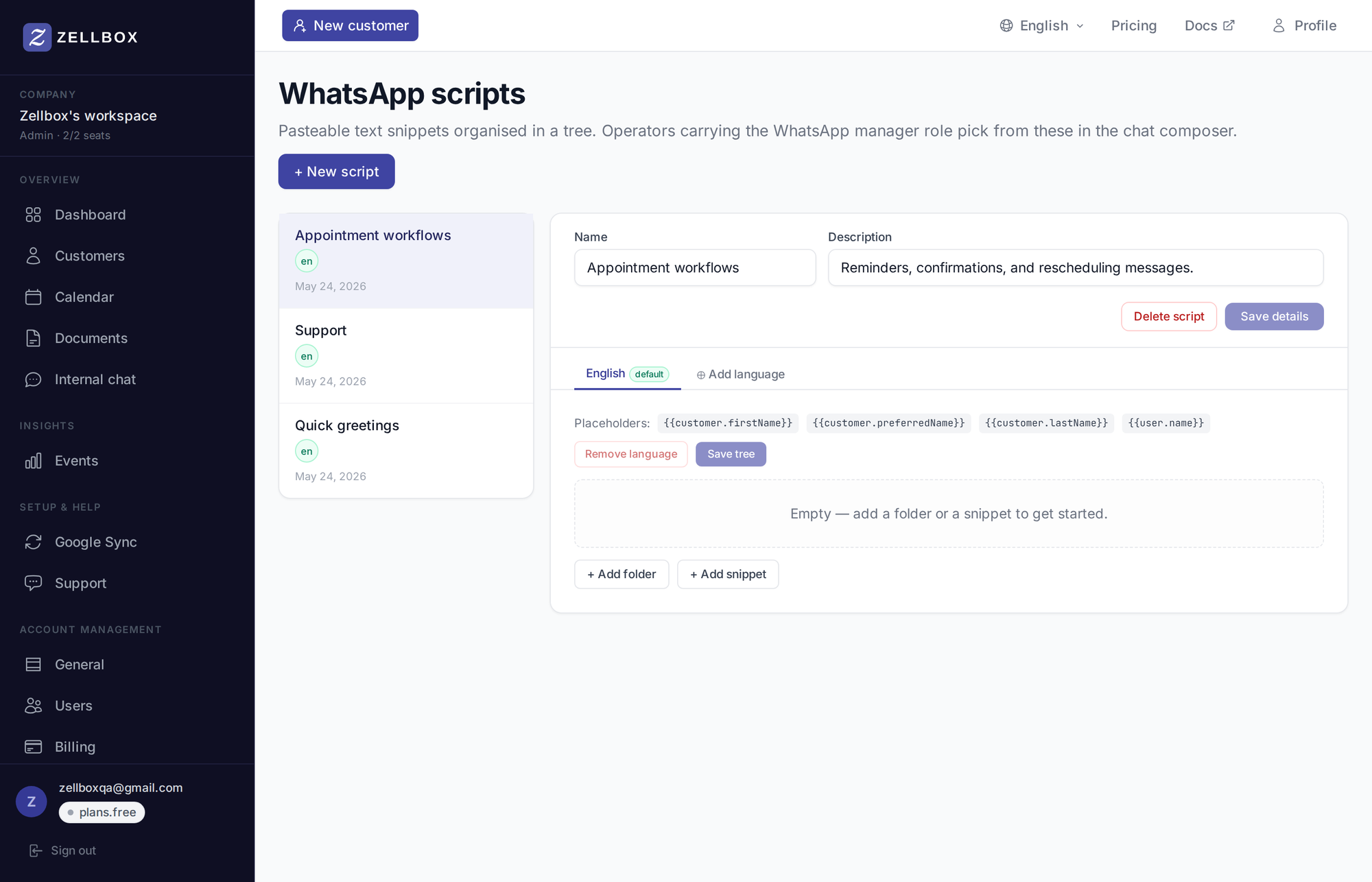
Creating a script
- Open Templates → WhatsApp scripts from the sidebar.
- Click + New script.
- Fill:
- Name — operator-visible label (e.g. "Quick greetings", "Appointment workflows").
- Description — what this script is for.
- Click Create.
- In the script editor, add folders and snippets:
- + Add folder — groups related snippets together (e.g. a folder of greetings).
- + Add snippet — a labelled chunk of pasteable text. The text supports Mustache-style customer placeholders like
{{customer.firstName}}and{{customer.lastName}}. See Allowed variables below for the full list — snippets walk a customer-only context, not the event/user/company objects that email + reminder templates use. Missing values render as empty string.
- Save the tree.
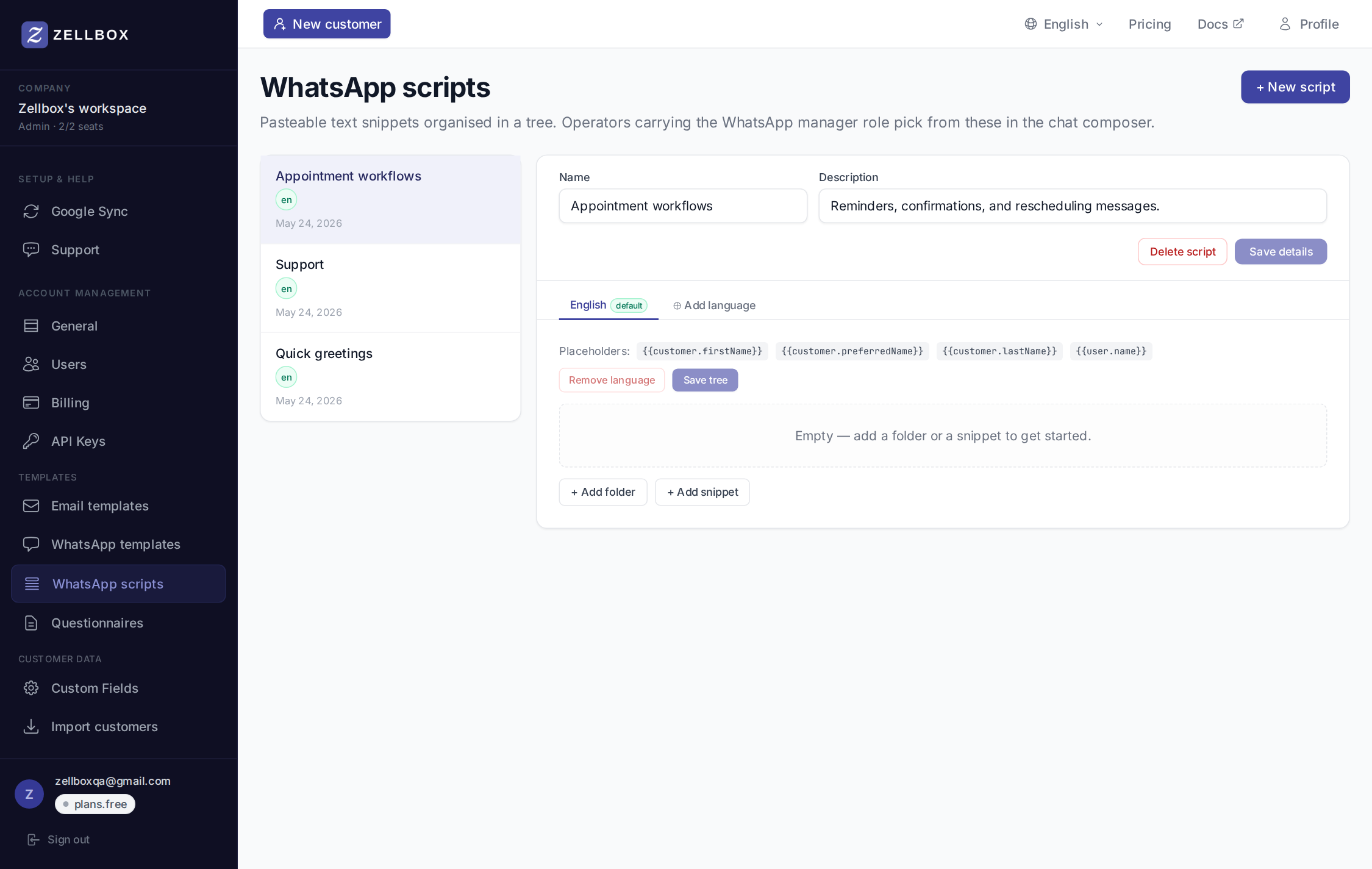
Multi-language variants
Each script can carry per-language variants. The default language matches the customer's preferred language at send time; if there's no variant for that language the script's default language is used.
Editing or deleting a script
- Edit — change name, description, or the snippet tree. The tree editor supports rename + drag-reorder.
- Delete — removes the script. Already-sent messages keep their rendered body verbatim.
How operators use a script
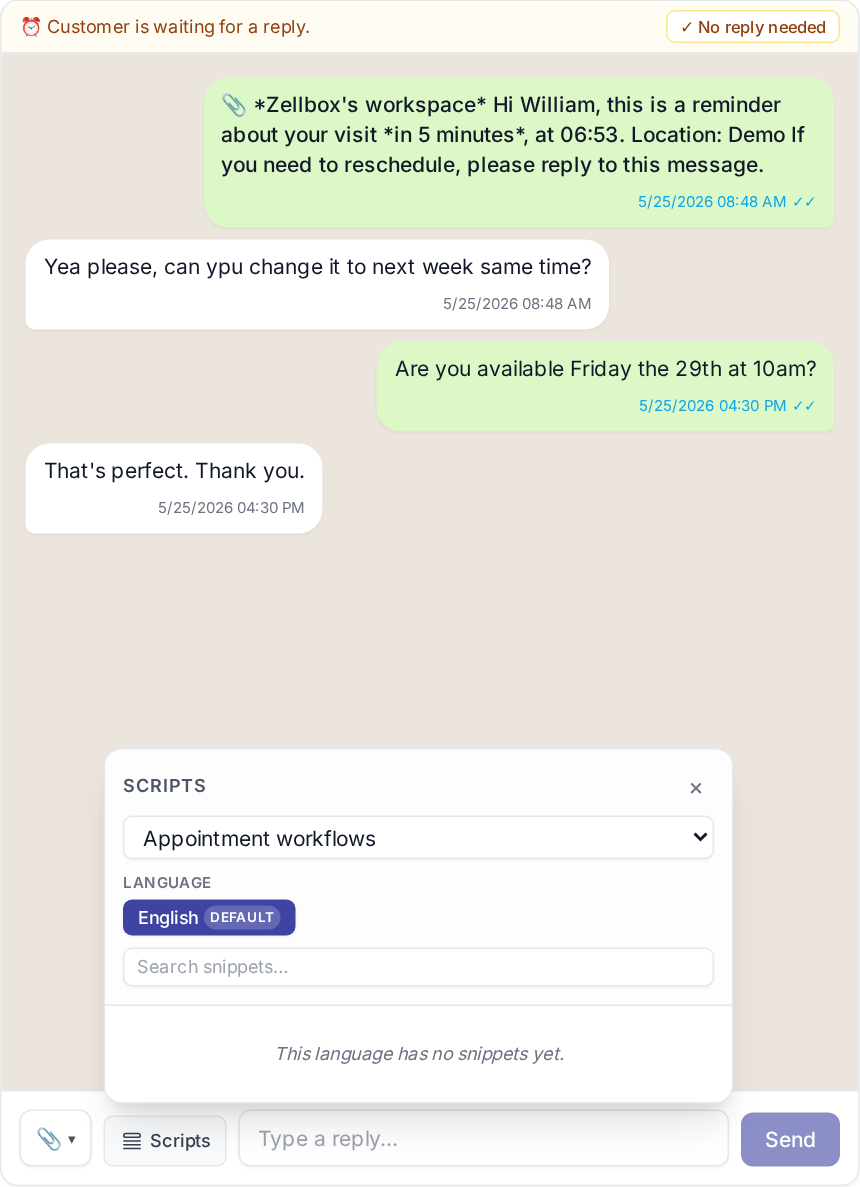
From the customer's WhatsApp popup (opened via the WhatsApp button on the customer-list row):
- Click Scripts at the bottom of the chat panel.
- A side panel slides out with all of the workspace's scripts as a navigable tree.
- Pick a snippet → its text (with placeholders resolved against the customer) is inserted into the composer.
- Edit if needed, then Send.
Allowed variables
Snippets use a Mustache-style {{path}} resolver that walks a customer-only context: only fields on the customer record you're messaging are available. The event / user / company contexts that appointment-reminder templates use are NOT available to snippets — the snippet-picker is opened from the chat composer, not from an event, so those objects aren't in scope.
Missing values render as an empty string rather than throwing, so a snippet is always safe to send even if a field is blank.
| Variable | Resolves to |
|---|---|
{{customer.firstName}} | Customer's first name |
{{customer.lastName}} | Customer's last name |
{{customer.email}} | Customer's email |
{{customer.phoneMobile}} | Customer's mobile phone |
{{customer.language}} | Customer's preferred language code |
A reminder snippet built from these might read: "Hola {{customer.firstName}}, ¿me confirmas tu cita?"
Any field present on the customer record can be referenced the same way (including custom fields — use the field's key). To reference event details (appointment date, service name, provider), send an approved appointment-reminder template from the Templates → WhatsApp Workflows tab; those templates run through a richer resolver that includes the upcoming event.
Meta approval step by step
Scripts are free text inside the 24-hour service window, but the moment a reminder or confirmation needs to fire outside that window, it has to exist first as a Meta-approved template — its row must show APPROVED on the Templates → WhatsApp page before Zellbox can send it.
- Draft in Meta Business Manager. Zellbox can't create templates on Meta's side; authoring happens directly in Business Manager for tenants on their own WhatsApp Business number. Pick the right category — reminders, confirmations, and appointment logistics belong in UTILITY, not MARKETING.
- Submit for review. Meta's review typically takes minutes to a couple of days, occasionally longer around holidays or for templates flagged for manual review.
- Watch the status. Zellbox mirrors each row hourly (or refresh manually with Refresh now in the toolbar) —
PENDINGwhile under review,APPROVEDonce cleared,REJECTEDif it fails. - Fix a rejection. The most common reason an operative reminder gets rejected is marketing language slipping into a UTILITY submission — "Don't miss our offer!", exclamation-heavy sales copy, or anything promotional. Strip the body down to the operational fact (who, what, when, where), keep the tone neutral, and resubmit as a new template — Meta doesn't let you edit a rejected template in place, only replace it.
Sector examples
These illustrate what an APPROVED UTILITY template looks like once Meta clears it. Each uses the same firstName / serviceLabel / providerLabel / whenLabel variables the appointment-reminder fan-out uses (see Templates → WhatsApp) — Zellbox resolves them from the customer, the event, and the assigned professional before the template renders.
Physiotherapy — 24-hour reminder Header: Reminder for {{firstName}}. Body: "Hi {{firstName}}, your {{serviceLabel}} session with {{providerLabel}} is scheduled for {{whenLabel}}. Reply STOP to opt out."
Aesthetic — pre-care instructions Header: Before your visit, {{firstName}}. Body: "Hi {{firstName}}, ahead of your {{serviceLabel}} with {{providerLabel}} on {{whenLabel}}, please arrive with clean skin and avoid sun exposure for 24h."
Veterinary — annual vaccination Header: Vaccination reminder. Body: "Hi {{firstName}}, your pet's annual {{serviceLabel}} with {{providerLabel}} is due on {{whenLabel}}."
Dental — appointment confirmation Header: Confirmed for {{firstName}}. Body: "Hi {{firstName}}, your {{serviceLabel}} with {{providerLabel}} is confirmed for {{whenLabel}}. Reply CONFIRM to lock it in."
All four ship as UTILITY category, in whichever of the 12 launch locales the customer's customer.language resolves to, and each maps to one of the three visit shapes Zellbox already fans out on (in-person with a location, phone/virtual without one, or virtual with a Google Meet link) — see Templates → WhatsApp for the full variable contract and per-locale preview.
Templates group into scripts — see Templates — WhatsApp for the category + language filter, and scripts for the reusable-message editor.