Appearance
Dashboard
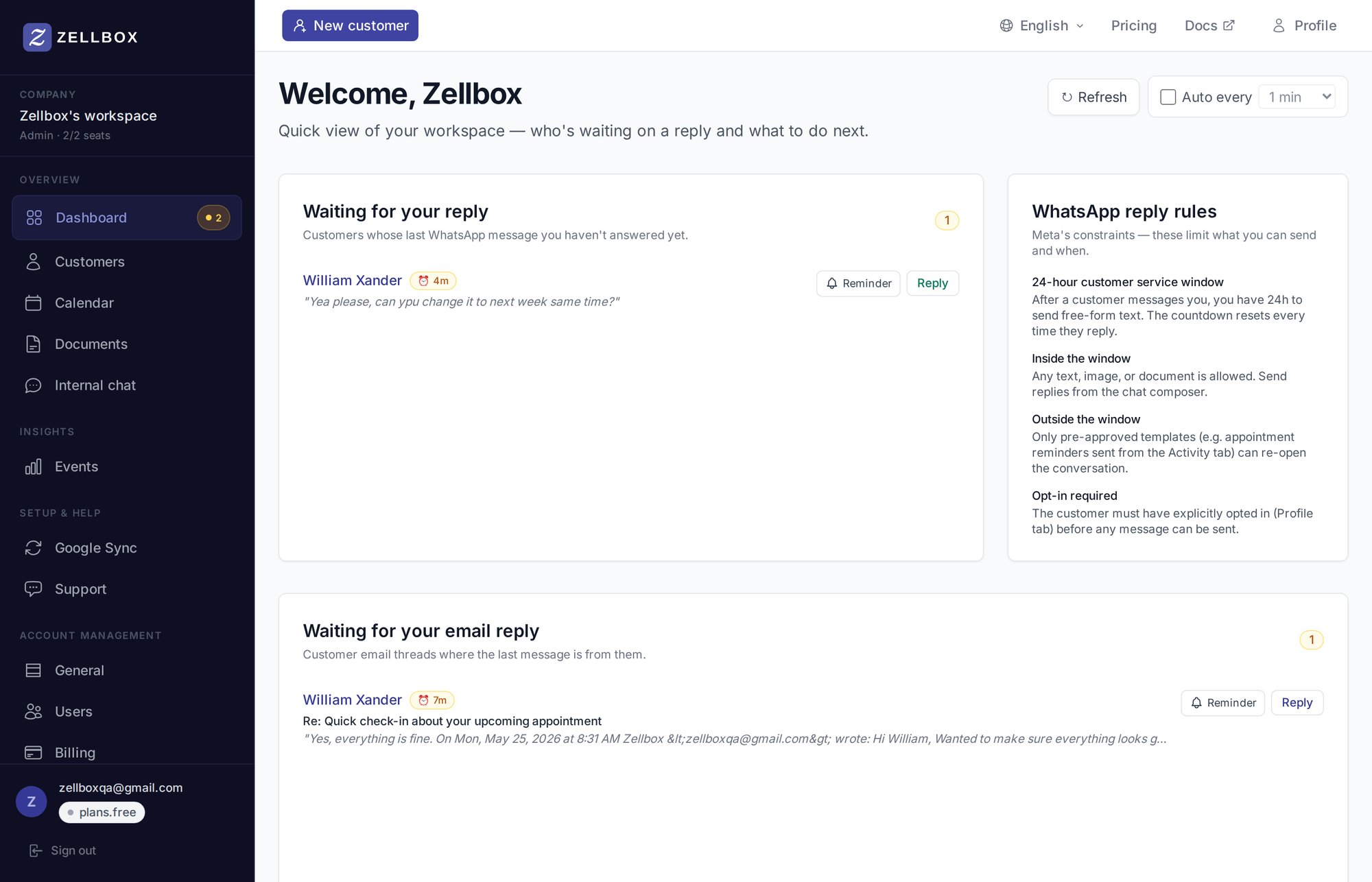
The dashboard is the page you land on after signing in. It's deliberately small: just the things waiting on a reply, the WhatsApp reply-rules cheat-sheet on the right, and any calendar-sync alerts you need to action. Upcoming events live on the Calendar page — the dashboard is a triage view, not a calendar.
Acting on a pending reply
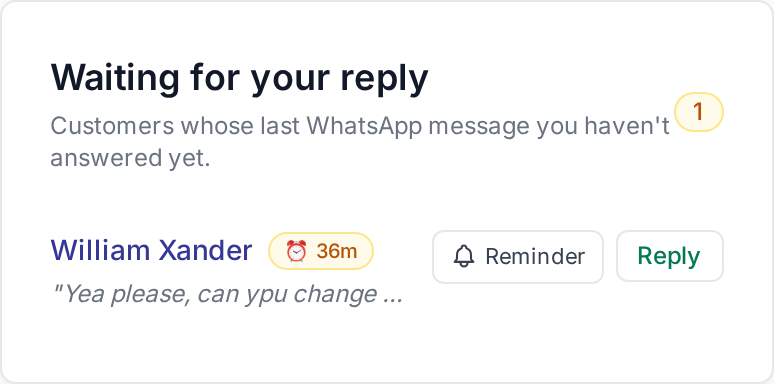
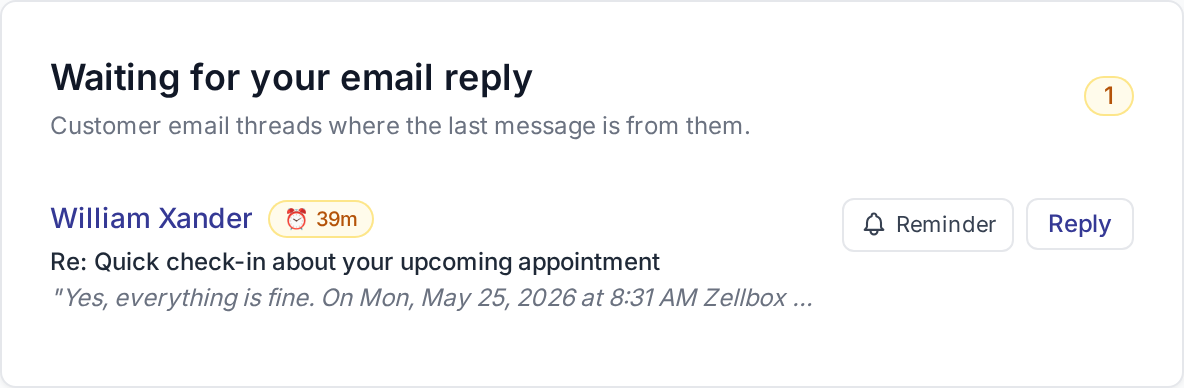
The Waiting for your reply card surfaces customers whose last WhatsApp inbound hasn't been answered (only visible to operators who carry the WhatsApp-manager CRM role). The Waiting for your email reply card is the same shape, but for email threads, and visible to every operator.
Each row shows the customer name, how long they've been waiting, the first words of their inbound, and a Reminder + Reply pair. The yellow badge top-right of each card is the current pending count.
To act on a row:
- Find the row in Waiting for your reply (WhatsApp) or Waiting for your email reply.
- Click the customer row → the corresponding popup opens (chat popup for WhatsApp, EmailsPanel for email) with the thread + composer.
- Reply, or click Mark complete if no reply is needed.
- The row disappears from the dashboard once any of: an outbound message sent, mark-complete clicked, or a fresh inbound arrives (which re-arms the row).
Reviewing a calendar-sync quarantine
The amber Sync banner at the top is only present when there's something to action — when the latest calendar sync had a quarantined cohort and the bulk-deletion safety guard fired.
- Click Review on the banner → opens the Sync status page with the affected calendar expanded.
- Each branch has an inline Approve button you can use to release the cohort, or you can leave it for the next clean sync to clear.
Refresh and auto-refresh
The dashboard shows the data that was on the page when you landed on it; new WhatsApp messages and Gmail replies don't appear on their own until you ask for them. The toolbar at the top-right gives you two ways to pull updates.
The Refresh button is a one-shot pull. Click it and Zellbox re-queries the two lists that drive the dashboard immediately: Customers waiting for your reply (incoming WhatsApp messages still flagged unread) and Emails waiting for your reply (Gmail threads with inbound mail you haven't responded to). The button shows a Refreshing… label while the request is in flight; once it returns, the cards repaint with the fresh counts and rows.
The Auto every N min toggle runs the same pull on a timer. Tick it on and Zellbox re-queries those same two lists every N minutes without you clicking. The cadence picker next to the toggle offers 1, 2, 5, 10, 15, or 30 minutes — pick what matches how hot your inbox feels. 1–2 minutes is right for an active receptionist shift where seconds matter; 15–30 minutes is closer to a "leave it open on a second monitor" workflow. Both the on/off toggle and the selected cadence are saved in your browser, so the dashboard remembers your choice when you reload or come back the next day. A separate setting is kept for the dashboard and for the customers list, so you can run them at different cadences if you prefer.
The sync-quarantine banner at the top of the page polls on its own schedule and is not driven by the refresh toolbar — there's nothing to do if you just want to know whether the safety guard is currently holding any cancellations, it'll show up regardless.