Email templates
Email templates let you save a subject + body + default attachments once and reuse them across customers. The templates are workspace-scoped — every operator sees the same library.
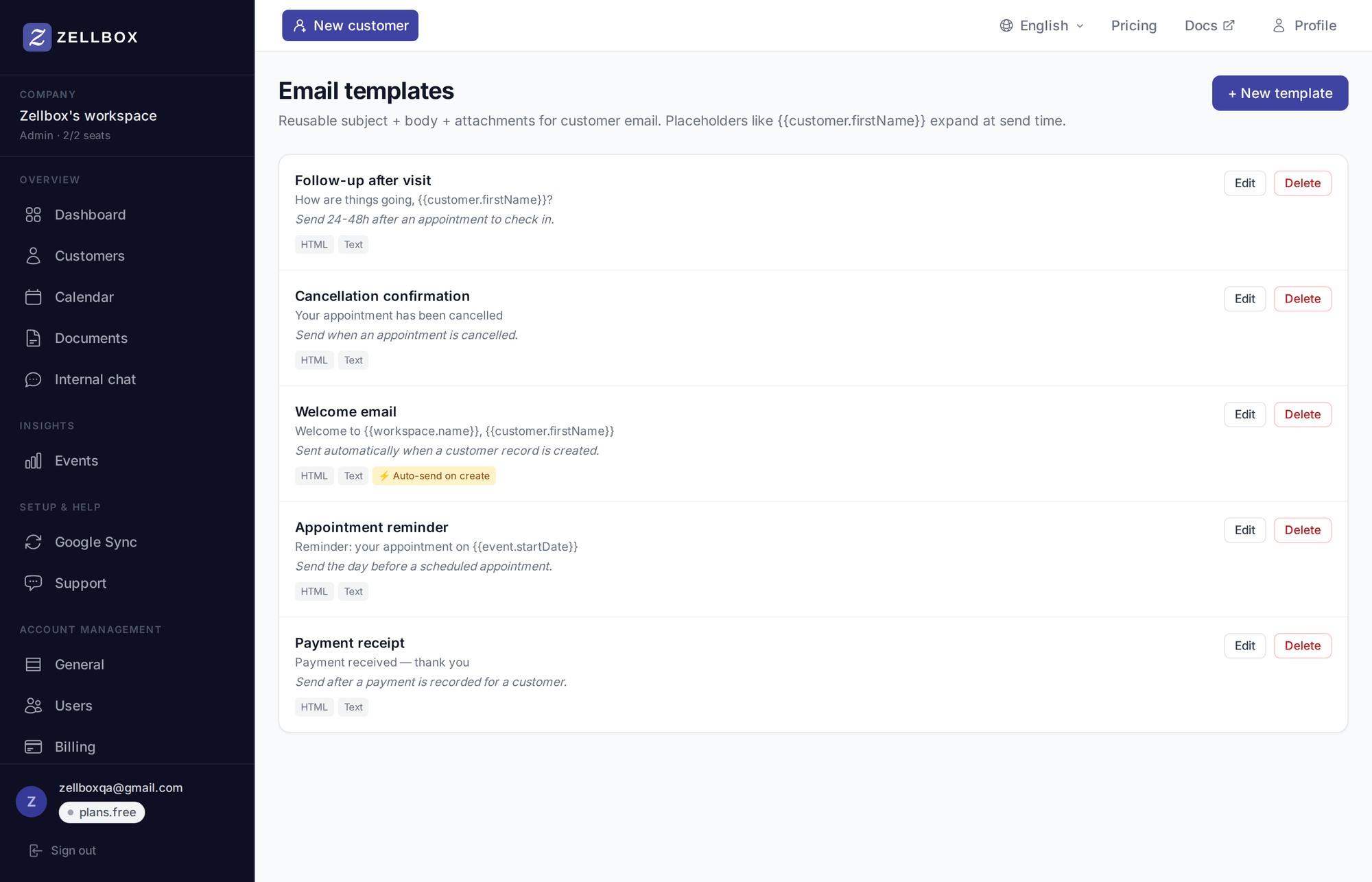
Creating a template
- Open Templates → Email from the sidebar.
- Click + New template.
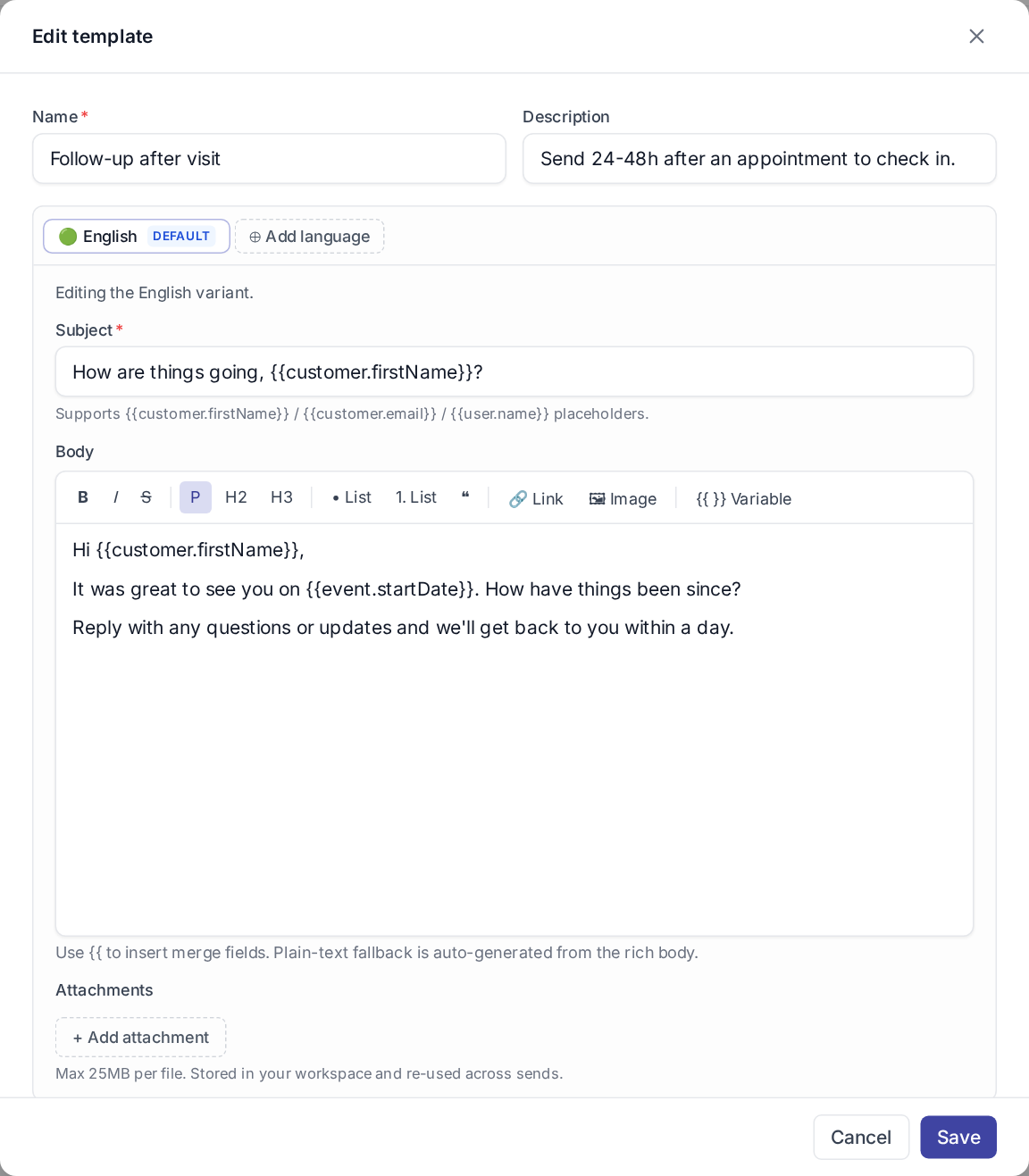
- Fill Name (operator-visible, not sent), Subject, and the HTML body + Text body (the text body is the plain-text fallback for clients that don't render HTML).
- (Optional) under Attachments, attach default documents from your workspace docs — they're auto-included when an operator picks this template.
- (Optional) tick Auto-send on create. Templates flagged this way are pre-ticked in the "Welcome emails" checklist on the +New Customer form — the operator still confirms which templates actually go out before saving the customer.
- Click Save.
Variables
Templates support Mustache-style placeholders. The resolver walks dotted paths against three top-level objects: the customer, the operator sending the email (user), and the workspace (company). Missing values render as an empty string — they never throw.
| Variable | Resolves to |
|---|---|
{{customer.firstName}} | Customer's first name |
{{customer.lastName}} | Customer's last name |
{{customer.email}} | Customer's primary email |
{{customer.phoneMobile}} | Customer's mobile phone |
{{user.name}} | The operator sending the email (full display name; no separate first/last fields on the user record) |
{{user.email}} | The operator's email |
{{company.name}} | Workspace name |
Any field present on the customer / user / company records can be referenced with the same dotted-path syntax — these are just the ones operators reach for most.
Multi-language variants
Each template can carry one variant per language. The dropdown at the top of the editor switches between them; the customer's preferred language drives which variant ships at send time, with the workspace's default language as the fallback when no variant matches.
Editing and deleting
Each row in the templates list has two actions:

- Edit — opens the editor; saving updates immediately for every operator. Already-sent emails are unaffected (the body lives on the sent message).
- Delete — removes the template. Past sends are unchanged.
Sending an email with a template
From the customer's email popup (opened via the Email button on the customer-list row), pick the template from the dropdown in the Compose modal. The subject + body pre-fill with the resolved variables; edit + send.