General
The General page is the central settings hub for your workspace — plan, business name, time zone, default customer language, calendar-invite default, customer-reminder defaults, event cancellation reasons, form presets, and billing details. The Account, Billing-details, Reminder-defaults, and Event-cancellation- reasons pages have all been folded into it. Admin-only.
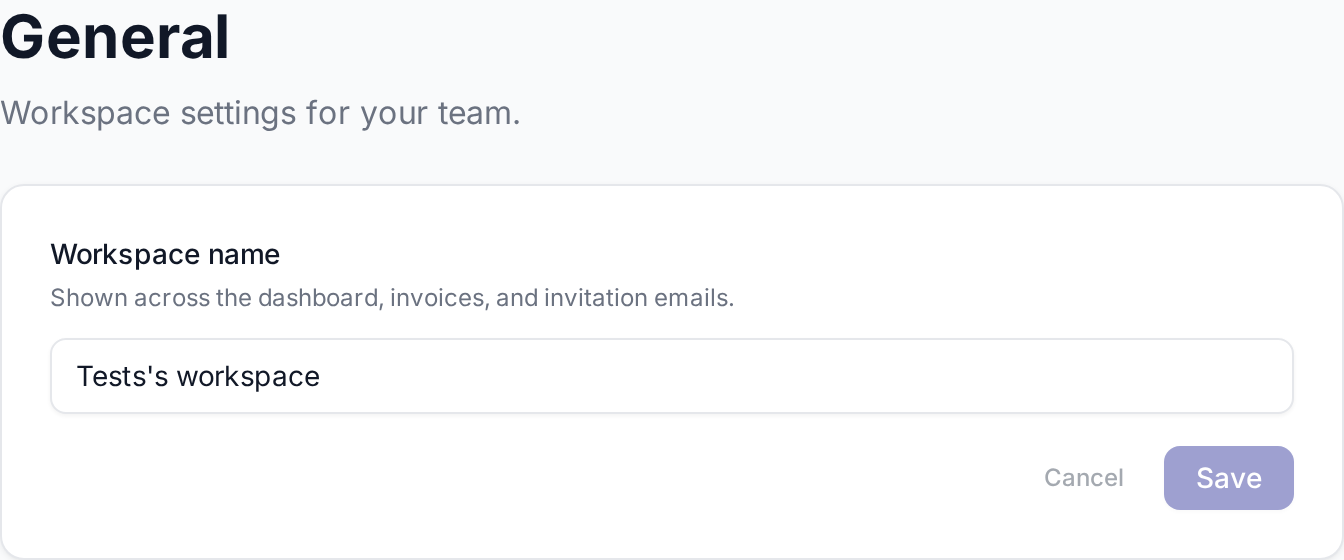
Plan card
The top card shows your current plan + a short description. The Manage plan button links to the pricing page where you can change tier.

Renaming the workspace
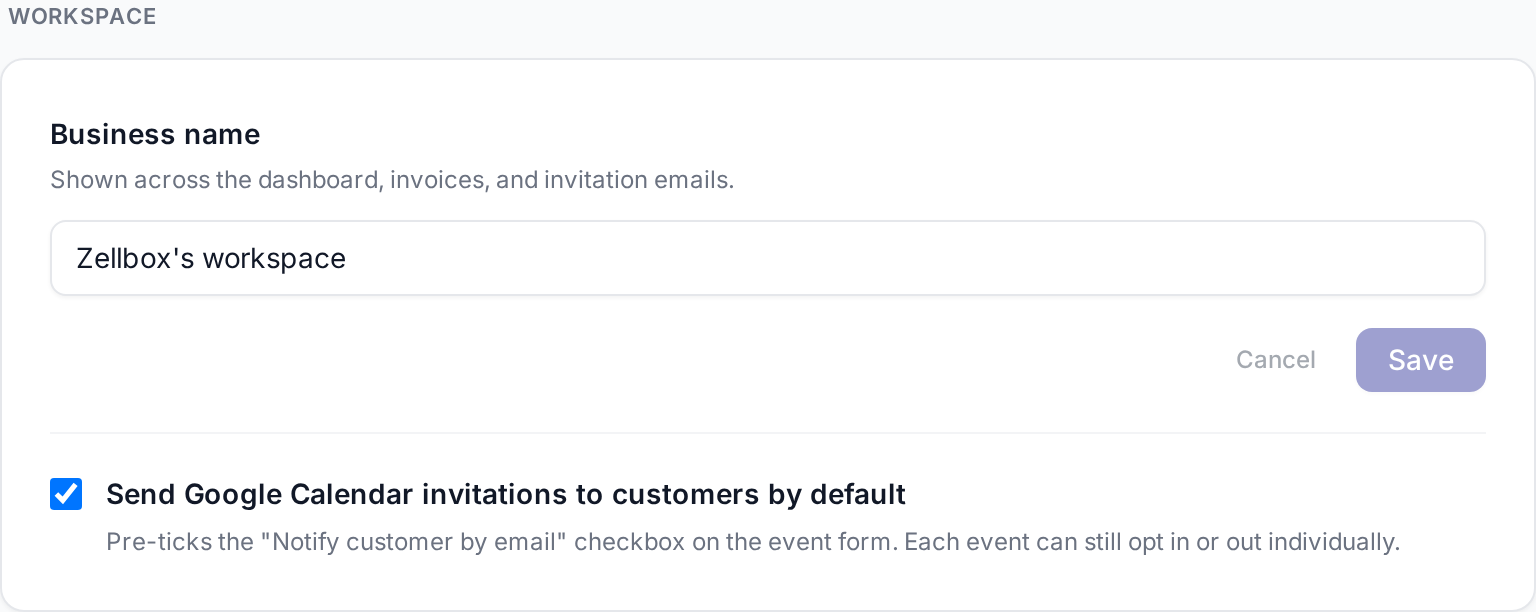
- Open Account → General from the sidebar.
- Under Workspace, edit the Business name field.
- Click Save.
The name shows across the dashboard, on invoices Stripe generates, and on team-invitation emails Zellbox sends.
Setting the workspace time zone
The Time zone field below Business name controls the wall-clock Zellbox uses when it formats dates and times in outbound messages to customers — WhatsApp reminders, email notifications, and any template that includes a visit's time. Without it set the platform falls back to UTC, which is the Lambda runtime's default and almost always wrong for a clinic operating outside London. Concretely: a Madrid clinic with no time zone configured firing an 18:00 reminder would tell the customer the visit is at 16:00 (the UTC equivalent). Pick the right zone here and every reminder lands on the right wall-clock minute.
The field accepts any IANA time-zone identifier (e.g. Europe/Madrid, America/New_York, Asia/Tokyo, UTC). Start typing a city or region name and the browser narrows the dropdown to matching zones; pick one and the offset chip on the right (UTC+02:00, UTC−05:00, …) updates so you can sanity-check the choice at a glance. Saves on change — no separate Save button.
Daylight Saving. IANA zones already model DST transitions, so picking Europe/Madrid means reminders sent in summer use CEST (UTC+02:00) and reminders sent in winter use CET (UTC+01:00) — Zellbox doesn't need a separate "DST yes/no" toggle.
Scope. The setting only affects how messages are formatted. It does not change how events are stored or how they appear on the calendar — those still respect the per-event time zone Google returned during sync. If a team member is travelling and creates an event in a different zone, that event keeps its own zone; only the workspace-level outbound copy uses the General-page setting.
Falling back. Leaving the field empty falls back to UTC. New workspaces start empty; set this as part of onboarding before turning on reminders.
Setting the default customer language
The Default customer language field below Time zone pre-selects the Preferred-language dropdown when you add a new customer, and acts as the workspace fallback when Zellbox needs to pick the language of an outbound email or WhatsApp template message and the specific customer has none on file. Picks cascade: explicit language on the message → customer.language → this workspace default → English.
Saves on change. Setting it to No default clears the workspace fallback so the cascade falls straight through to English.
Changing the calendar-invite default
Under Workspace, the Send Google Calendar invitations to customers by default checkbox controls whether new events pre-tick the "Notify customer by email" toggle on the event form. Each event can still opt in or out individually.
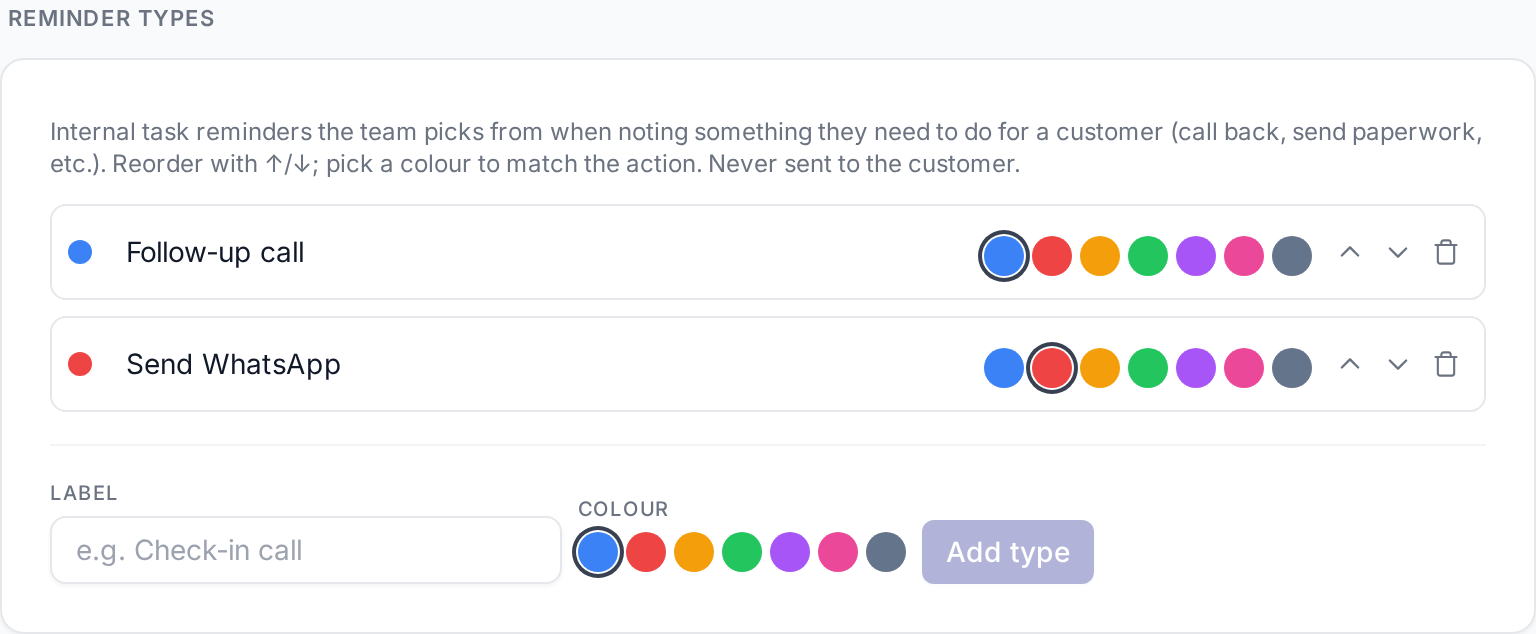
Editing the reminder-type palette
Under Customer reminders → Reminder types, manage the colour-coded reminder types every operator picks from when scheduling a reminder on a customer (from the dashboard rows + chat popups). Reorder with ↑/↓; pick a colour for each.
Consent types
Under Consent types, manage the catalog of consent documents your workspace asks customers to sign — HIPAA, GDPR, marketing opt-in, photo release, anything else. The catalog starts empty; add the types you actually use, with the exact legal text the customer agrees to.
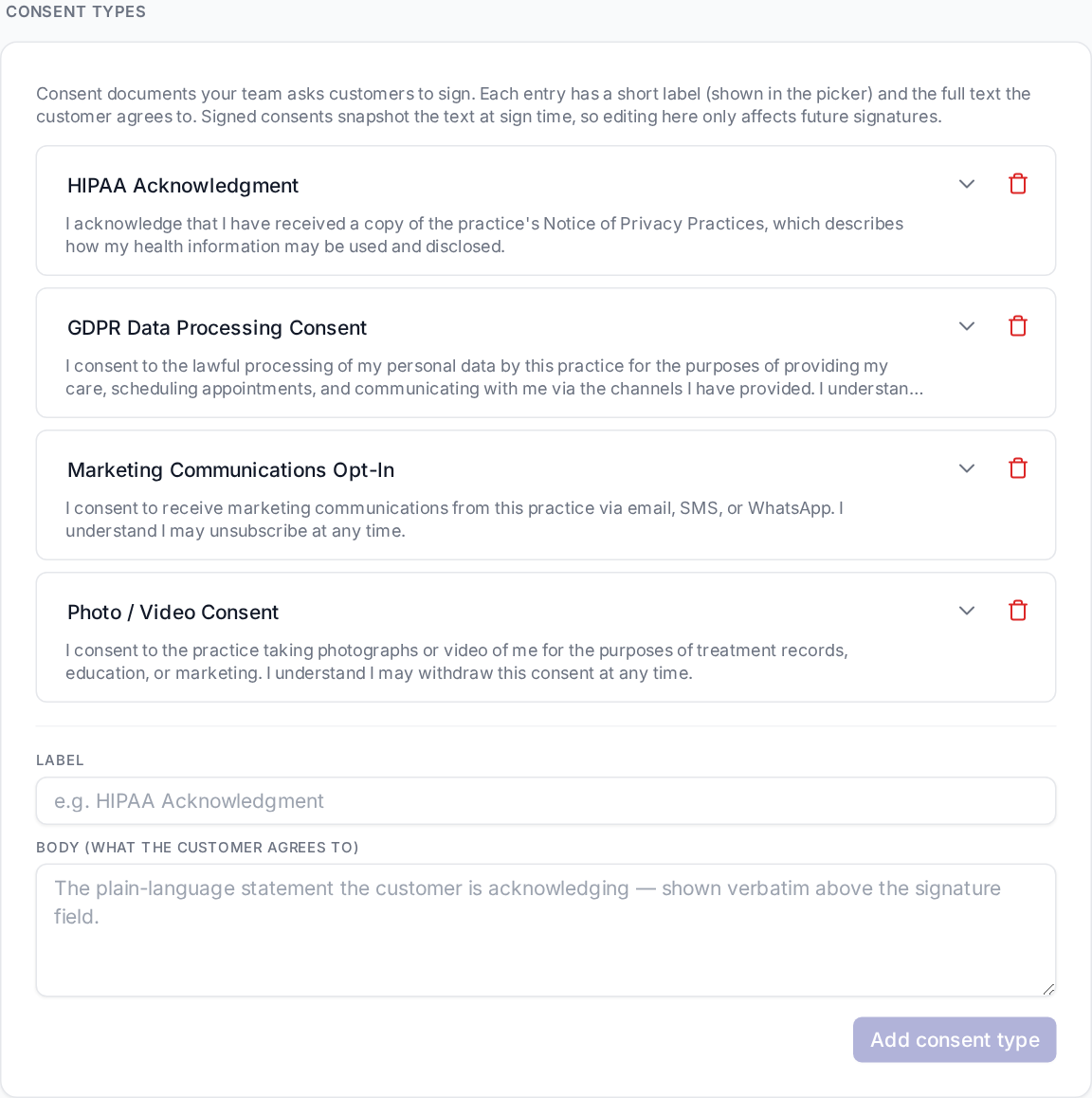
Adding a type. Fill Label (the short name shown in the picker — e.g. "HIPAA Acknowledgment") and Body (the full plain-language statement). Click Add consent type. The new entry shows up in every customer's Consents tab picker immediately.
Editing. Click any row's label or expand it (↓) to edit the body. Changes save on blur and affect only future signatures — already-signed consents snapshot the label / body / version onto the consent row at sign time, so the legal record stays exactly what each customer agreed to.
Deleting. Removes the type from new-signature pickers. Already-signed consents of that type keep rendering with their snapshotted text; the type just disappears from the catalog.
Coverage. Insights → Compliance shows who's signed each type and who hasn't.
Form presets
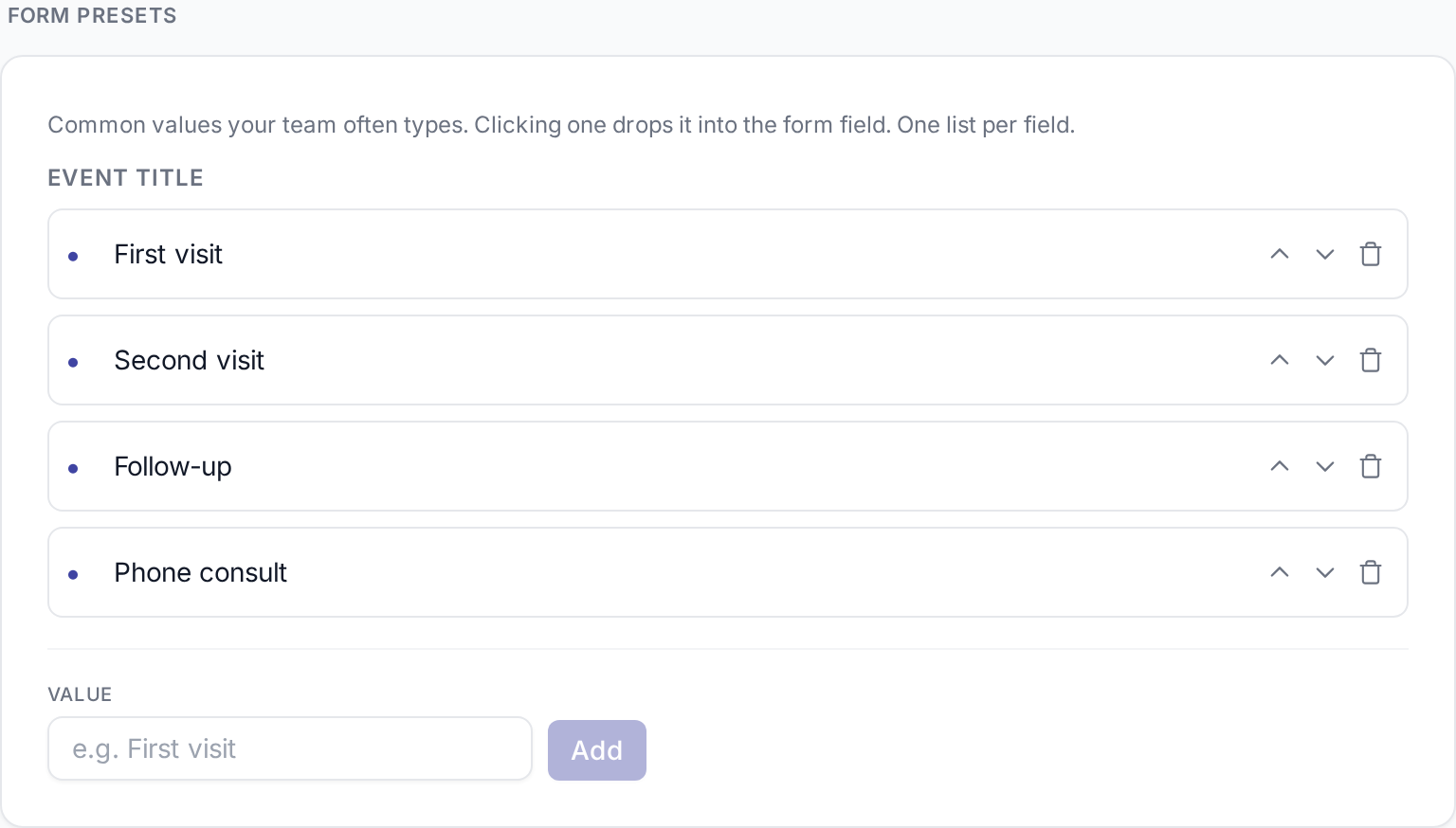
Under Form presets, manage the one-click value pickers Zellbox shows above selected form fields. For example, the event-title field on the calendar create-event modal and the in-modal visit form on new customers both surface this list as a "Quick:" row. Add the shorthands your team types most (e.g. Initial visit, Follow-up, Bioimpedance); reorder with ↑/↓.
Changing the default schedule for new events
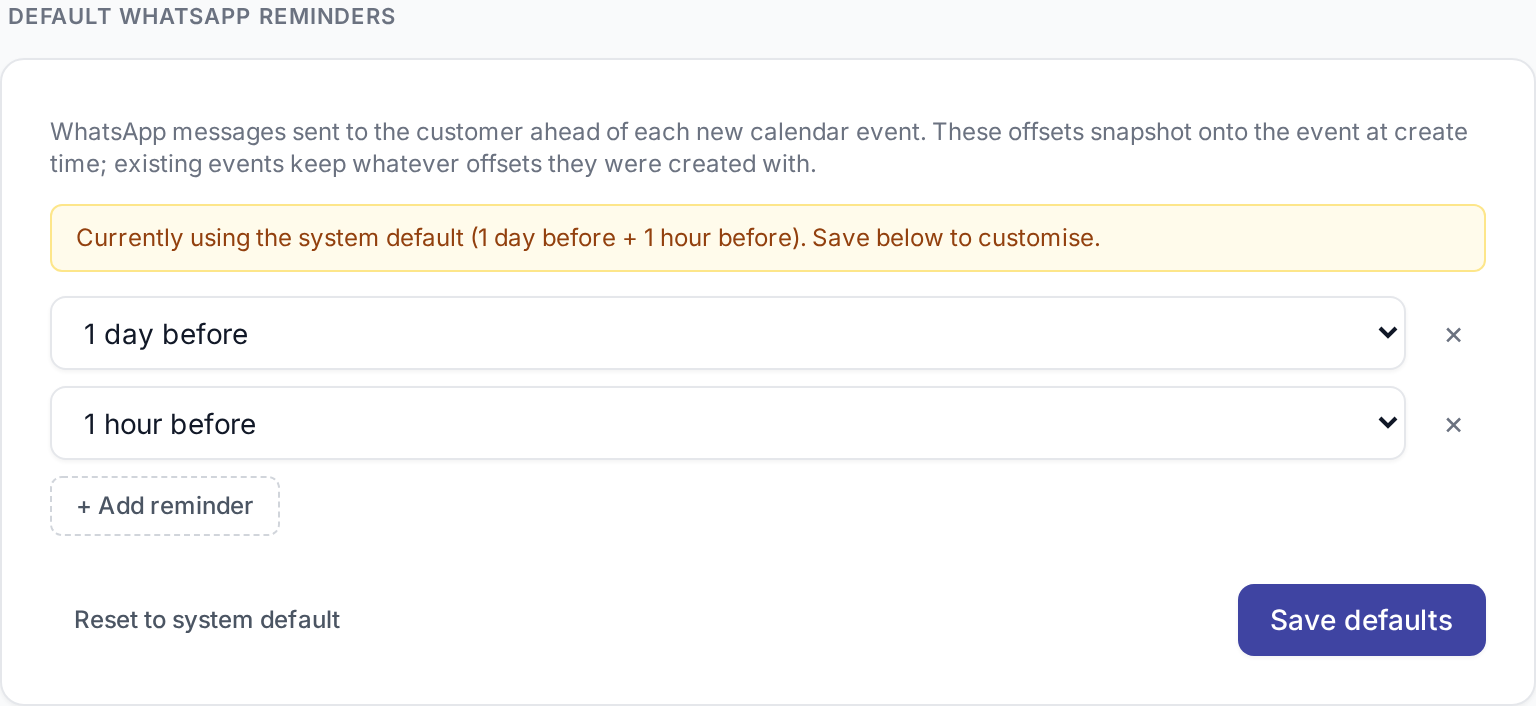
Under Customer reminders → Default schedule for new events, set the WhatsApp reminder offsets that snapshot onto each new calendar event. Existing events keep the offsets they were created with.
The wall-clock time stamped on each reminder ("at 18:00") is rendered in the workspace time zone, so configure that first.
Event cancellation reasons
Under Event cancellation reasons (right below Default WhatsApp reminders), manage the dropdown of reasons your team picks from when cancelling a calendar event. Insights groups the cancellation report by these codes, so the list doubles as the report categories.

Adding a reason. Click Edit on the section to open the option editor. + Add value appends a new row with two fields:
value— the stable internal key Insights groups by. Stick to short, lowercase tokens (no_show,customer_cancelled,manager_unavailable). Never reuse a value across renames.label— what operators see in the dropdown. Translate freely; read like prose.
Reordering. Drag the grab handle on any row to change the order shown in the Cancel-event dialog.
Renaming. Edit a row's label in place — already-cancelled events show the new label everywhere immediately because they store the value only, not the label. Renaming the value is the dangerous one: every event already cancelled with the old code keeps the old key forever (Insights will report two distinct rows for what was conceptually the same reason). Only rename a value when you really mean it.
Deleting. Removes the reason from the picker. Events already cancelled with that reason keep their stored code (and still appear in Insights' historical reports), but the reason is no longer offered for new cancellations.
Default catalog. New workspaces ship with: customer no-show, customer cancelled, rescheduled, workspace closed, manager unavailable, other. Override any or all of them — the workspace defaults disappear from the picker the moment you save your own list.
Editing billing details
The Billing-details form lives further down the page. Fill in:
- Legal company name (appears on invoices)
- Billing email
- Tax ID type + value (VAT / CIF / etc.)
- Billing address — line 1, line 2, city, state/province, postal code, country
Changes apply to future invoices; past invoices keep their snapshotted details. Invoices themselves are issued by Stripe and delivered to the billing email — Zellbox does not host an invoices list.
For questions about plan changes, invoicing, or user seats see the FAQ.