Appearance
Documents
Documents are the file library Zellbox uses for attachments and fillable spreadsheet templates. Every document has a scope:
- Workspace documents — shared across the whole workspace. Useful for branded PDFs, intake forms, spreadsheets that every operator should be able to send.
- Customer documents — attached to a specific customer (uploaded forms, signed consents, lab results).
The global /documents page stacks both sections — workspace documents on top, customer-scoped documents underneath — with search across the whole library.
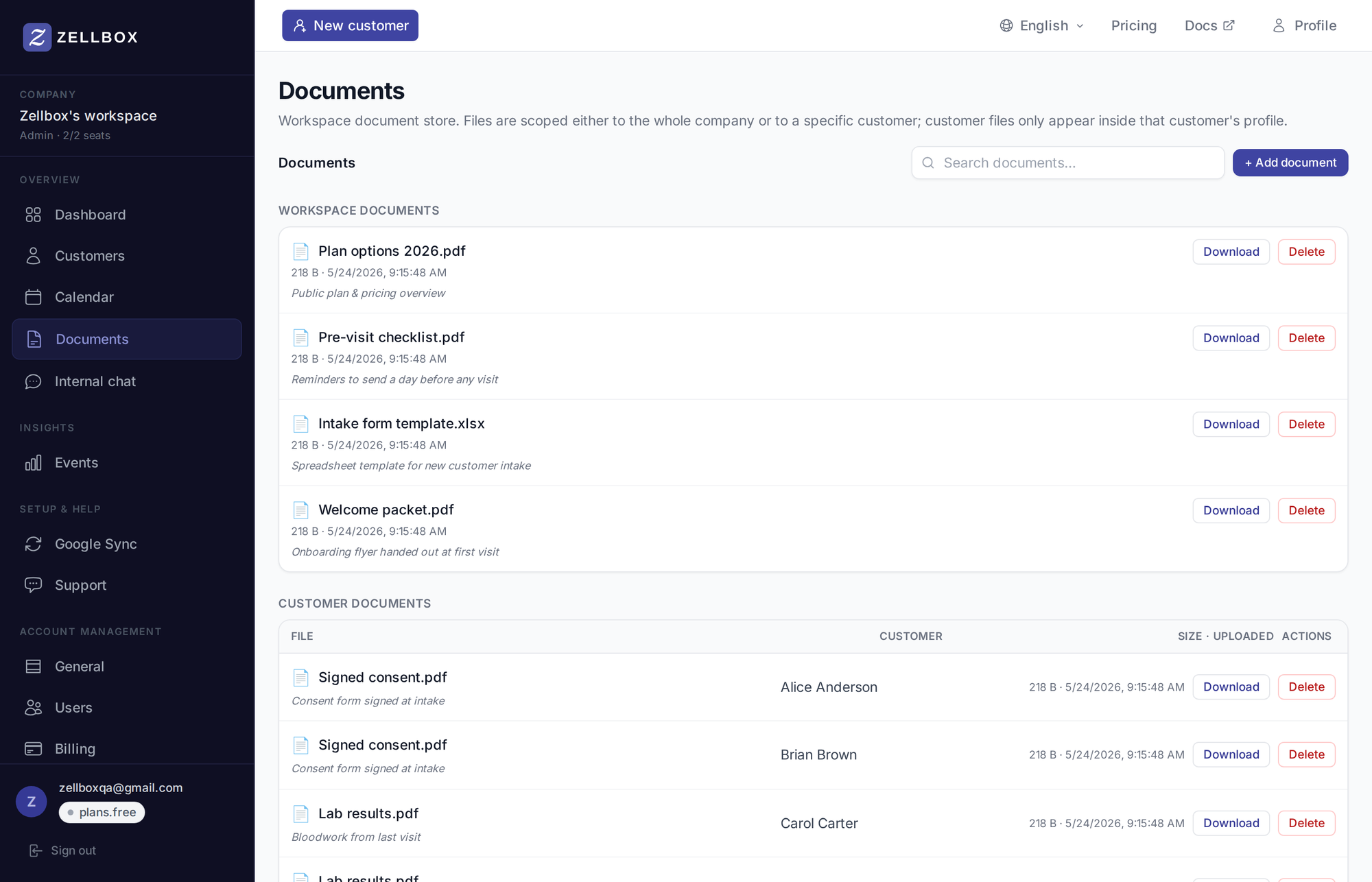
Uploading a workspace document
- From the sidebar, open Documents.
- Click + Add document at the top of the Workspace section.
- Pick the file (PDF, Excel, image, …).
- Optionally add a description + tags.
- Save.
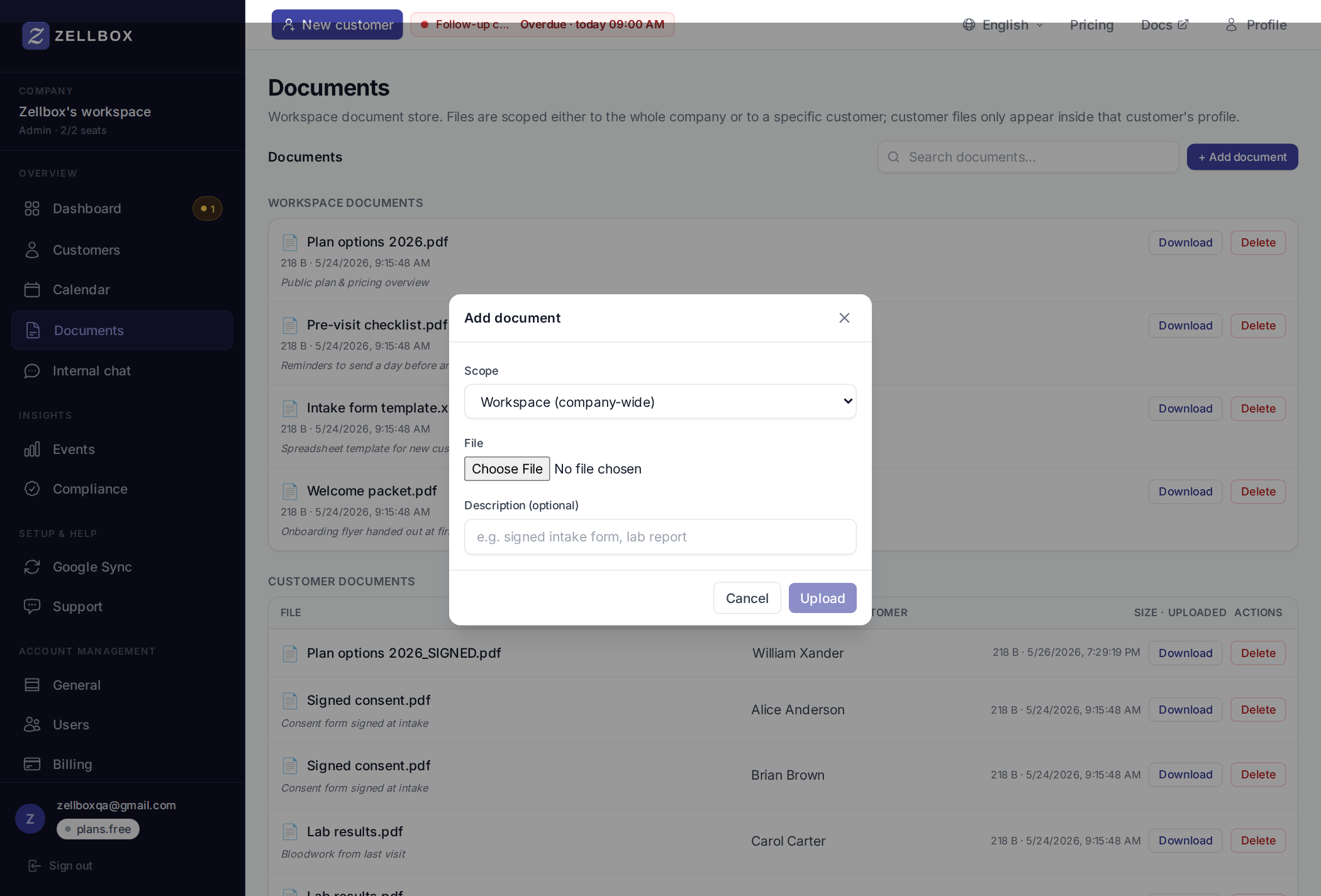
The document is now pickable from the email / WhatsApp / chat composers as "From workspace documents…".
Marking a spreadsheet as a template
Templates are workspace-scope Excel files (.xlsx) that operators can fill in per customer. The toggle only appears on the upload form, not on existing documents — pick the right scope and file when uploading:
- Click + Add document on the Workspace section (same modal as above).
- Pick a
.xlsxfile. (Other file types don't get the template toggle.) - Make sure scope is Workspace (the default on the global page).
- Tick Use as template at the bottom of the upload form (admins only). The checkbox appears below the description field once a
.xlsxfile is selected. - Save.
That spreadsheet now shows up on every customer's profile under Filled spreadsheets with a + Fill template button. Clicking it opens the SpreadsheetEditor; saving stores a filled copy as a customer-scoped document.
Attaching a document to a customer
Two paths:
Upload directly to the customer
- Open the customer's row (click to expand it).
- Documents tab → + Add document.
- Pick the file. The document is scoped to this customer only.
Attach via the email / WhatsApp / chat composer
The paperclip on these composers opens a 3-source picker:
- From your computer — direct upload.
- From workspace documents… — pick from the shared library.
- From this customer's documents… — pick from the customer's files. (Only available when the composer has a customer context — chat doesn't.)
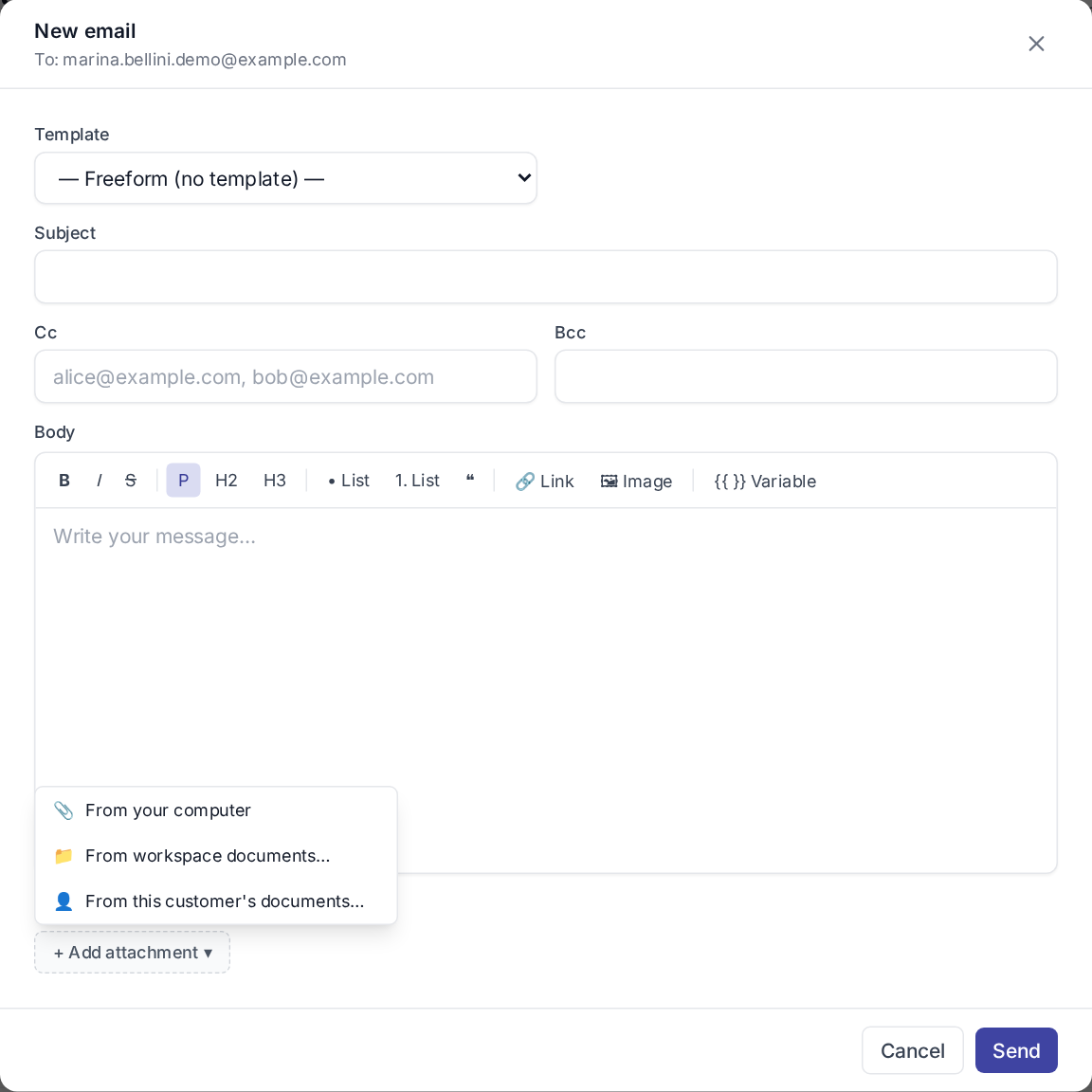
The picker is the same component everywhere so behaviour is consistent across channels.
Downloading or deleting a document
Every document row carries Download and Delete buttons on the right (visible on the documents-page screenshot at the top of this page). Download opens the file via a temporary signed download link. Delete removes the row (admin-only on the global page; the customer-scope tab lets each operator manage their own uploads).