Appearance
Chat (internal)
Zellbox ships an internal team chat so the front desk + practitioners can coordinate without leaving the app. It's a workspace-wide real-time chat with direct messages, group chats, file + document attachments, calendar-event sharing, reactions, replies, and message edit/delete.
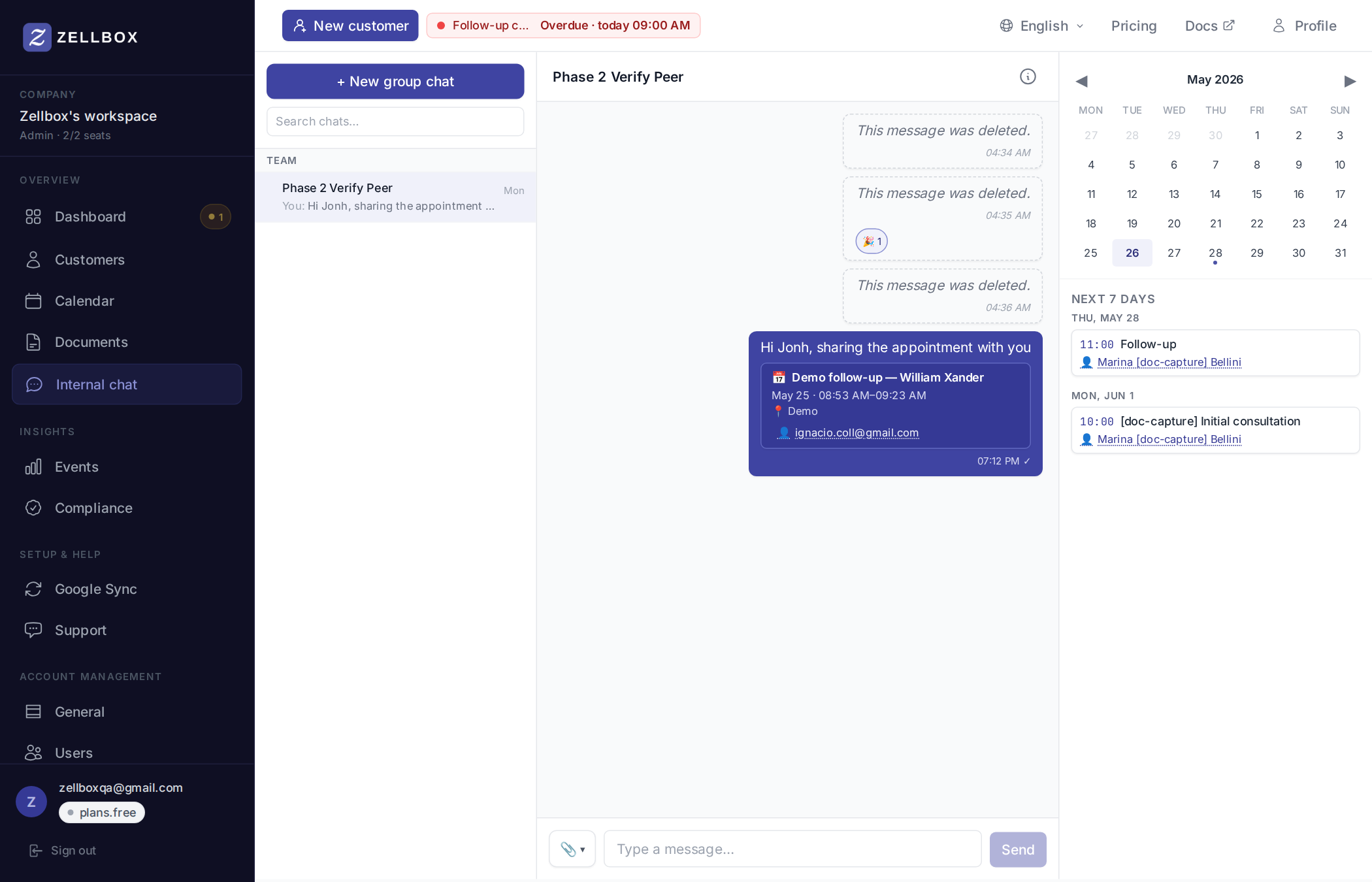
The chat opens at /chat from the sidebar. Three columns: the left rail lists Groups + every workspace member (clicking a teammate opens the conversation, lazily creating the channel on first message); the middle is the message timeline + composer; the right rail carries your schedule context (mini-calendar + next-7-days appointments), hidden on small screens and toggleable via 📅 in the chat header.
Starting a direct chat
- Open
/chat. - In the Team section of the left rail, click any teammate's row.
- The conversation opens in pending mode (empty list). Type a message + send.
- On send, Zellbox creates the direct chat and delivers the message. The row moves into the real-chats block of the Team section.
Creating a group chat
- Click + New group chat at the top of the left rail.
- Pick 2+ workspace members.
- (Optional) give the group a name.
- Click Create group.
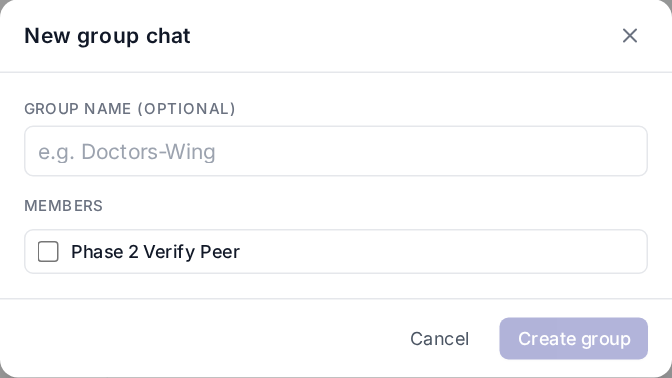
Groups always appear in the Groups section at the top of the left rail.
Replying, reacting, editing, deleting
Right-click any message to open the action menu, or hover for the quick toolbar:
- Reply — opens a quote chip above your composer. Send to attach the reply.
- React — open the emoji picker (12 options ordered by workplace usage: 👍 ✅ ❤️ 🎉 🚀 🔥 🙏 💯 👀 😂 😮 😢). Click again to remove your reaction.
- Edit — only on your own messages, within 15 minutes of send. Inline textarea, Enter to commit / Esc to cancel.
- Delete — only on your own. The message renders as "This message was deleted" so the thread keeps its shape. Available only via right-click (not the hover bar) so it can't be mis-clicked.
Sending an attachment
The paperclip on the composer opens the 3-source picker:
- From your computer — direct upload.
- From workspace documents… — pick from Documents.
Up to 10 attachments per message. Each chip in the composer can be removed with × before sending.
Sharing a calendar event in chat
From the Calendar page:
- Right-click an event chip.
- Click Share with….
- Multi-select workspace members + optional note.
- Click Share.
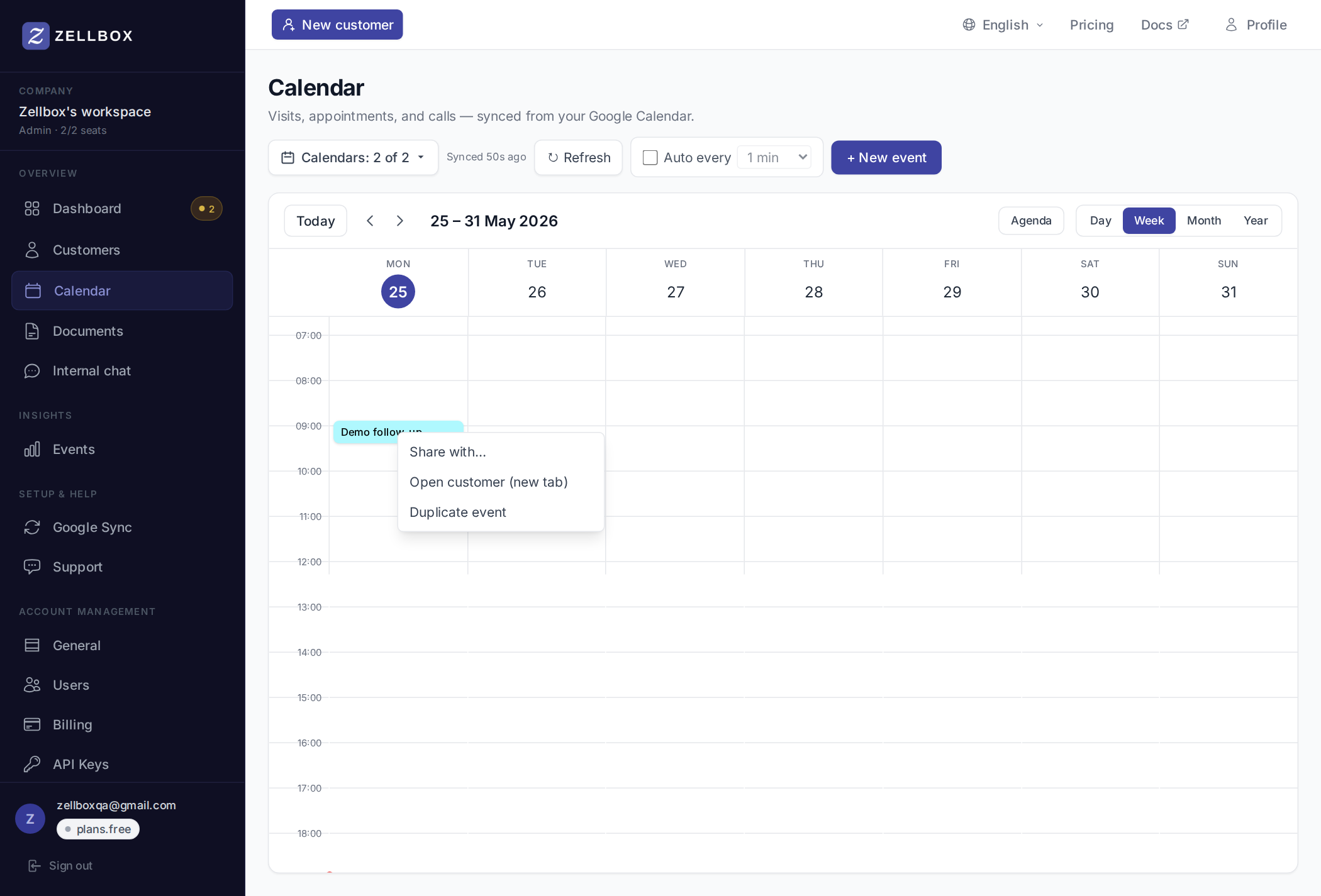
Zellbox creates (or reuses) the chat channel, sends an event card into it, and navigates you into the conversation. Recipients see the event card — click to open the event editor in-place over the chat page.
The event card also shows the linked customer (if any) as a clickable chip that opens the customer-detail modal without leaving chat.
Opening the channel-info panel
Click the ⓘ in the channel header. A right-side panel slides out with channel members, group name editor (groups only), add-member / remove-member affordances (admin / channel creator), and leave-channel for groups.
What you'll see in a thread
- ✓ / ✓✓ on your own messages: delivered / seen. ✓✓ only on direct (1:1) channels; groups skip per-user seen tracking.
- Typing indicator: "X is typing…" appears below the message list while the peer is composing. Auto-clears after 3.5s.
- Day separators: when messages span multiple days, the timeline shows a centered date pill ("Today", "Yesterday", "Mon, May 18") between groups.