Quick Start
Three steps take a brand-new account to a working workspace with teammates. After that you can opt into Calendar, WhatsApp, email, imports, and the rest — each lives in its own page.
Step 1 — Sign up
Open zellbox.com/signup.
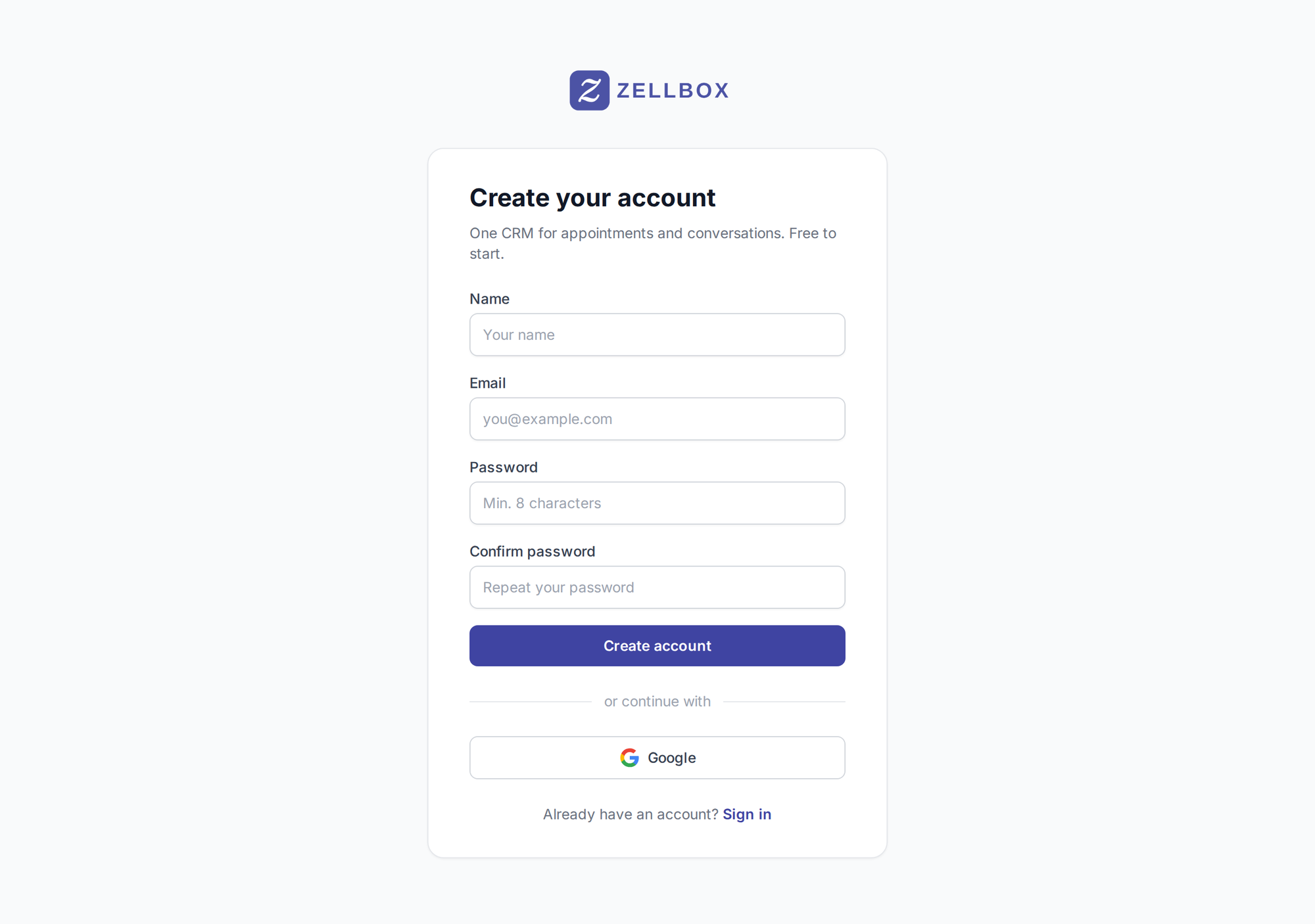
You can sign up two ways:
- Email and password — enter your name, email, and a password (at least 8 characters). Confirm the password and click Create account. Zellbox sends a 6-digit verification code to your inbox; enter it on the next screen and you're in.
- Continue with Google — one-click sign-in using your Google account. The first time, Google asks you to confirm sharing your name and email with Zellbox.
Step 2 — Workspace settings (Account → General)
Open the sidebar's Account → General page. This is the workspace's identity hub: plan, business name, time zone, default customer language, calendar-invite default, customer-reminder palette, event cancellation reasons, and one-click form presets that seed quick-text snippets.
Plan card
The first card on the page shows your current plan and a Manage plan button that links to the pricing page. Plan changes happen there; the General page is read-only for plan info.

Workspace — name + calendar invitations
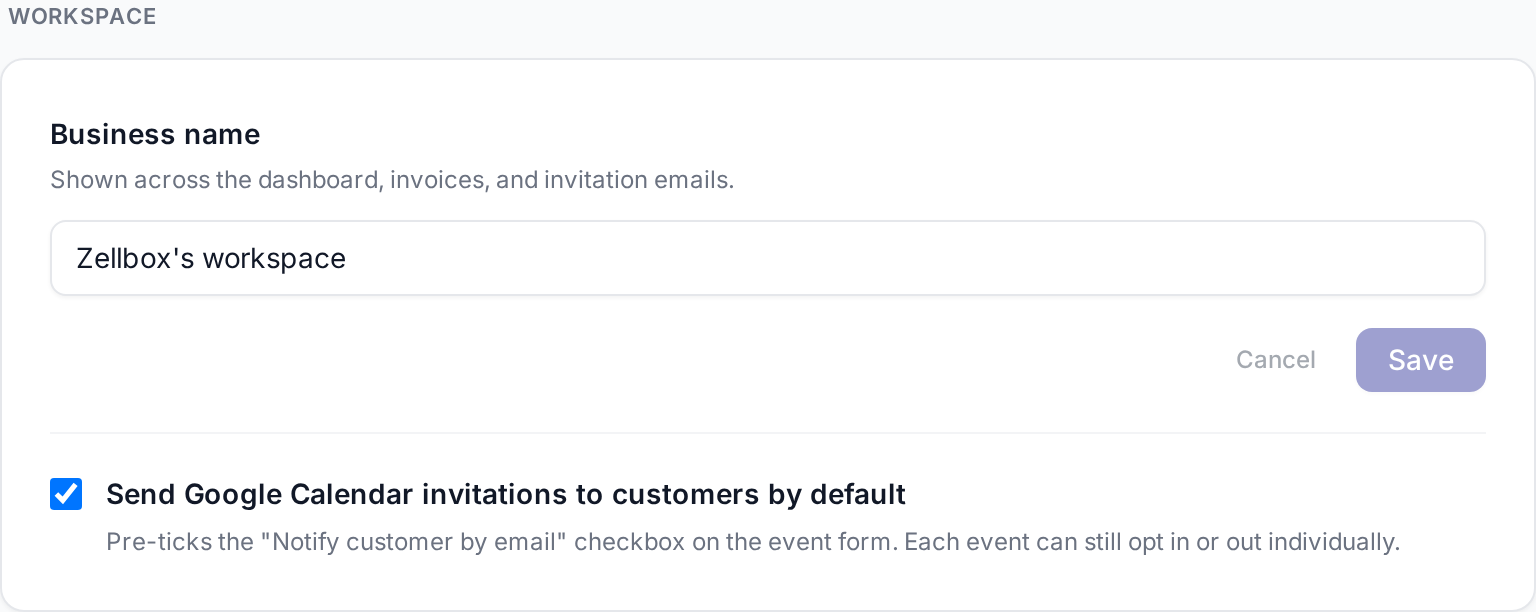
- Business name — your workspace's customer-facing name. Shown across the dashboard, on invoices, on team-invitation emails, and in the header of any WhatsApp reminder Zellbox sends on your behalf. Editing it propagates to in-flight reminders the next time Zellbox processes them.
- Send Google Calendar invitations to customers by default — pre-ticks the "Notify customer by email" toggle on the event form. Each event can still opt in or out individually; this is just the per-form default.
- Time zone — IANA zone Zellbox uses when formatting times in outbound messages. Pick the right zone here before turning on reminders or every WhatsApp reminder tells the customer the wrong wall-clock minute. Defaults to UTC if unset.
- Default customer language — pre-selects the Preferred-language dropdown when you add a new customer and acts as the fallback when Zellbox needs to pick a language for an outbound message and the specific customer has none on file. The cascade is: language explicit on the message →
customer.language→ this workspace default → English. Set this early — the WhatsAppwhenLabelslot (the "today at 14:30" / "morgen um 14:30 Uhr" phrase in every reminder) renders natively in the customer's language, so getting the workspace default right makes every reminder land in the right tongue.
Reminder types
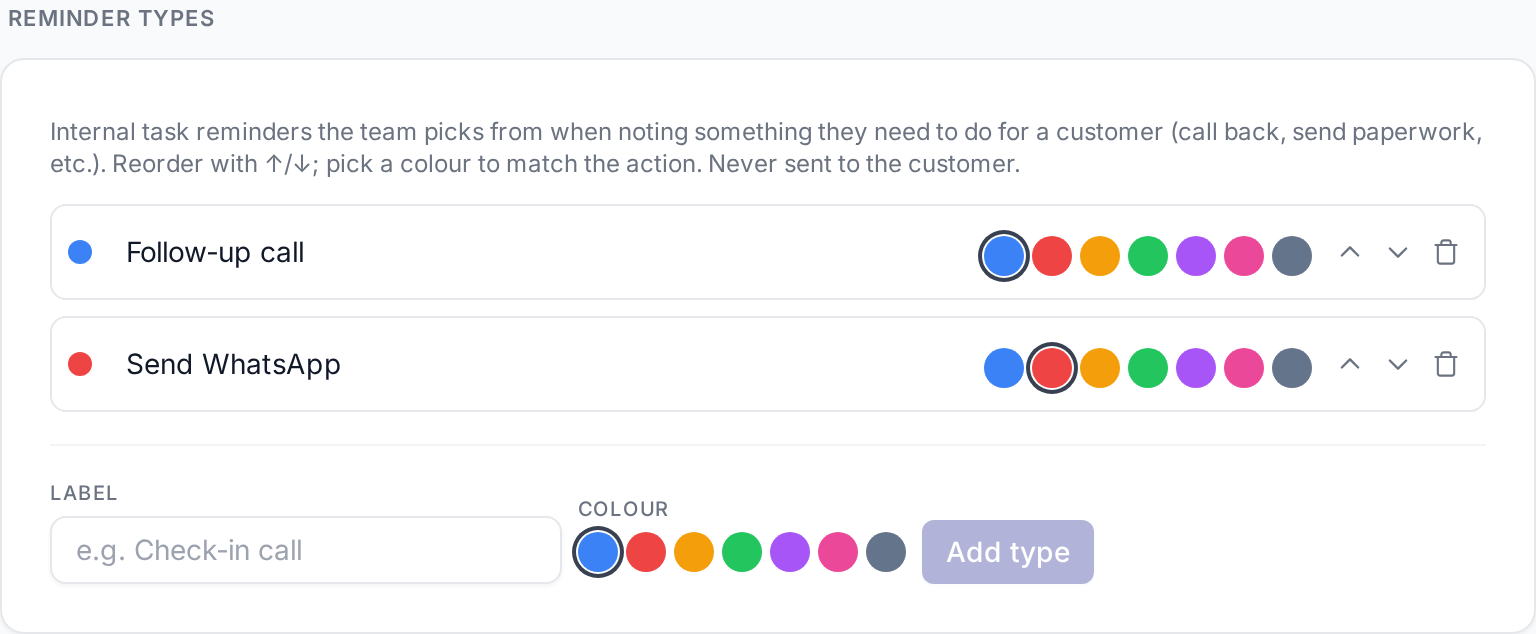
These are internal task reminders the team picks from when noting something they themselves need to do for a customer — call back, send paperwork, follow up after a visit. They show up on the dashboard's reminder rows, on the WhatsApp + email chat popups, and on the customer detail's Reminders tab.
Each type has a label + a colour. Reorder with the ↑/↓ arrows; click a swatch to set the colour. Deleting a type removes it from the picker for future reminders, but already-created reminders keep the type's snapshotted label and colour.
Reminder types are never sent to the customer — they're a team-internal task list.
Default WhatsApp reminders
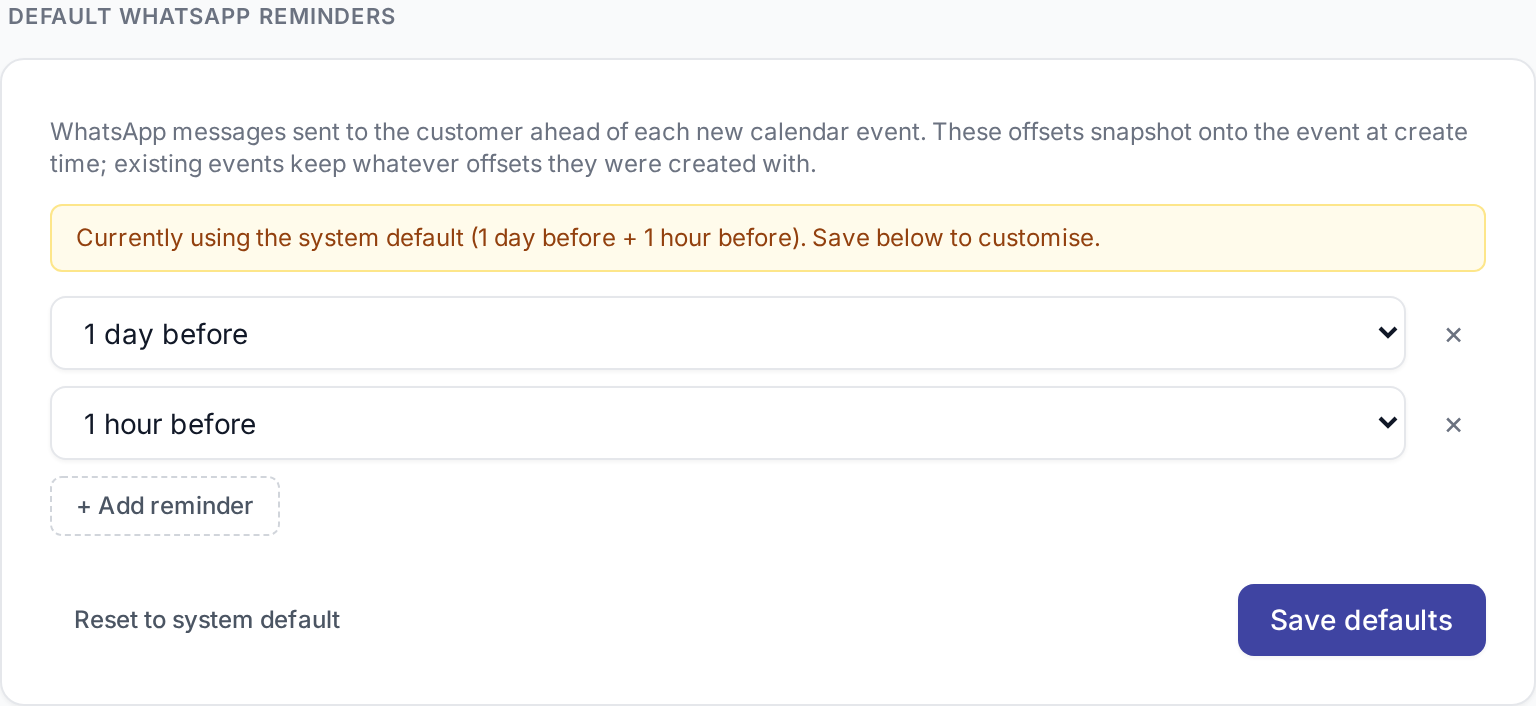
These are the customer-facing WhatsApp messages Zellbox sends ahead of each new calendar event. Each entry in the list is an offset (e.g. "1 day before", "1 hour before") that snapshots onto every event you create from that point on. The customer receives the corresponding WhatsApp reminder at each offset before the event starts.
Existing events keep whatever offsets they were created with, so editing this list doesn't retroactively rewrite events already on the calendar.
Event cancellation reasons
The catalog of reasons your team picks from when cancelling an event. Insights groups its cancellation report by these codes, so the list doubles as report categories. Ships with sensible defaults (customer no-show, customer cancelled, rescheduled, workspace closed, manager unavailable, other); override as needed. Renaming a label is free; renaming the underlying value key is forever for already-cancelled events.
Form presets
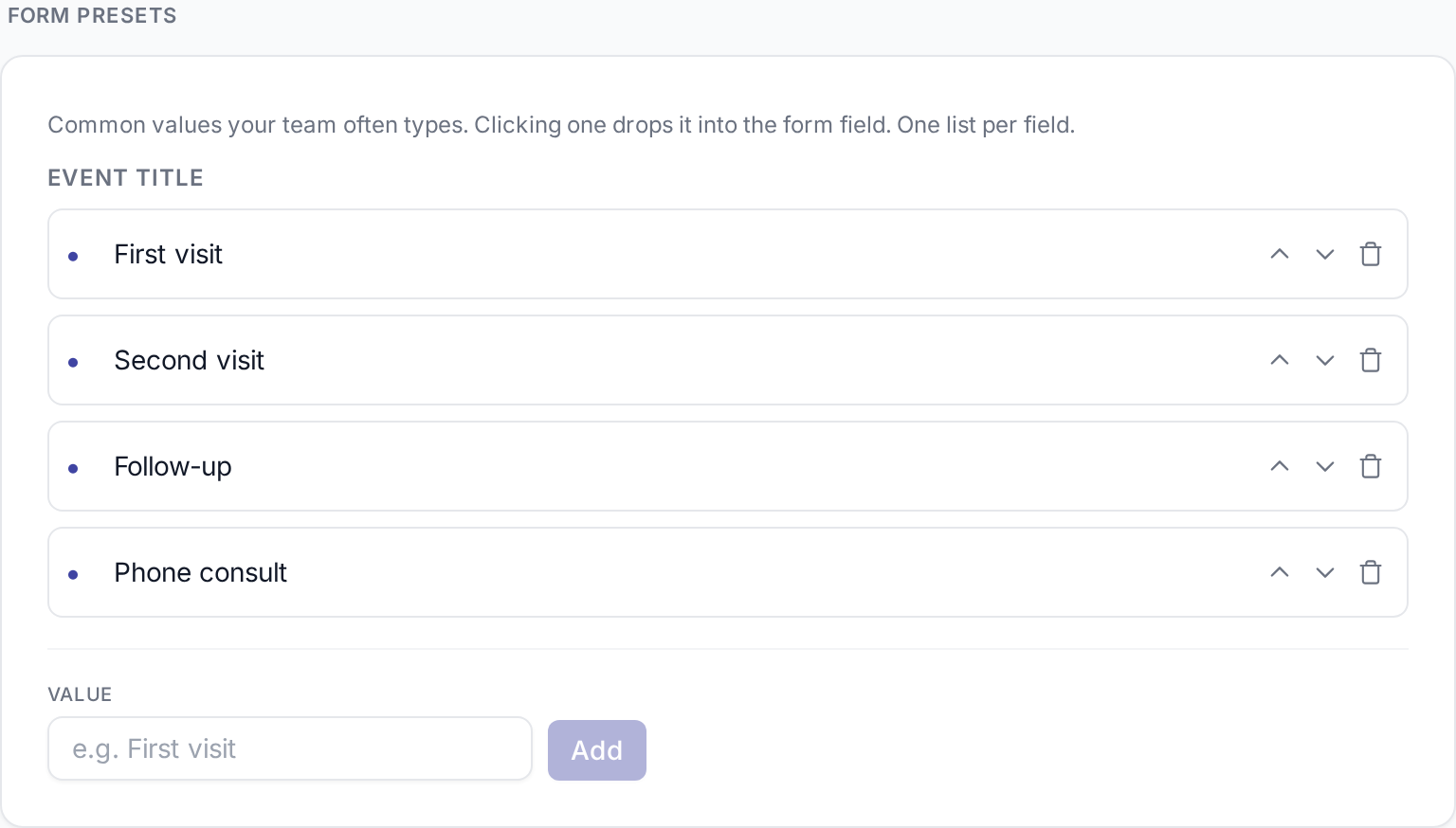
The Form presets card is a small list of quick-text snippets your team types often. Clicking one inside a form drops the text into the field. One snippet list per supported field — useful for things like canned cancellation notes or recurring lab-result phrasings.
Step 3 — Invite your team (Account → Team)
Open the sidebar's Account → Team page. You'll see yourself in the members list as admin.
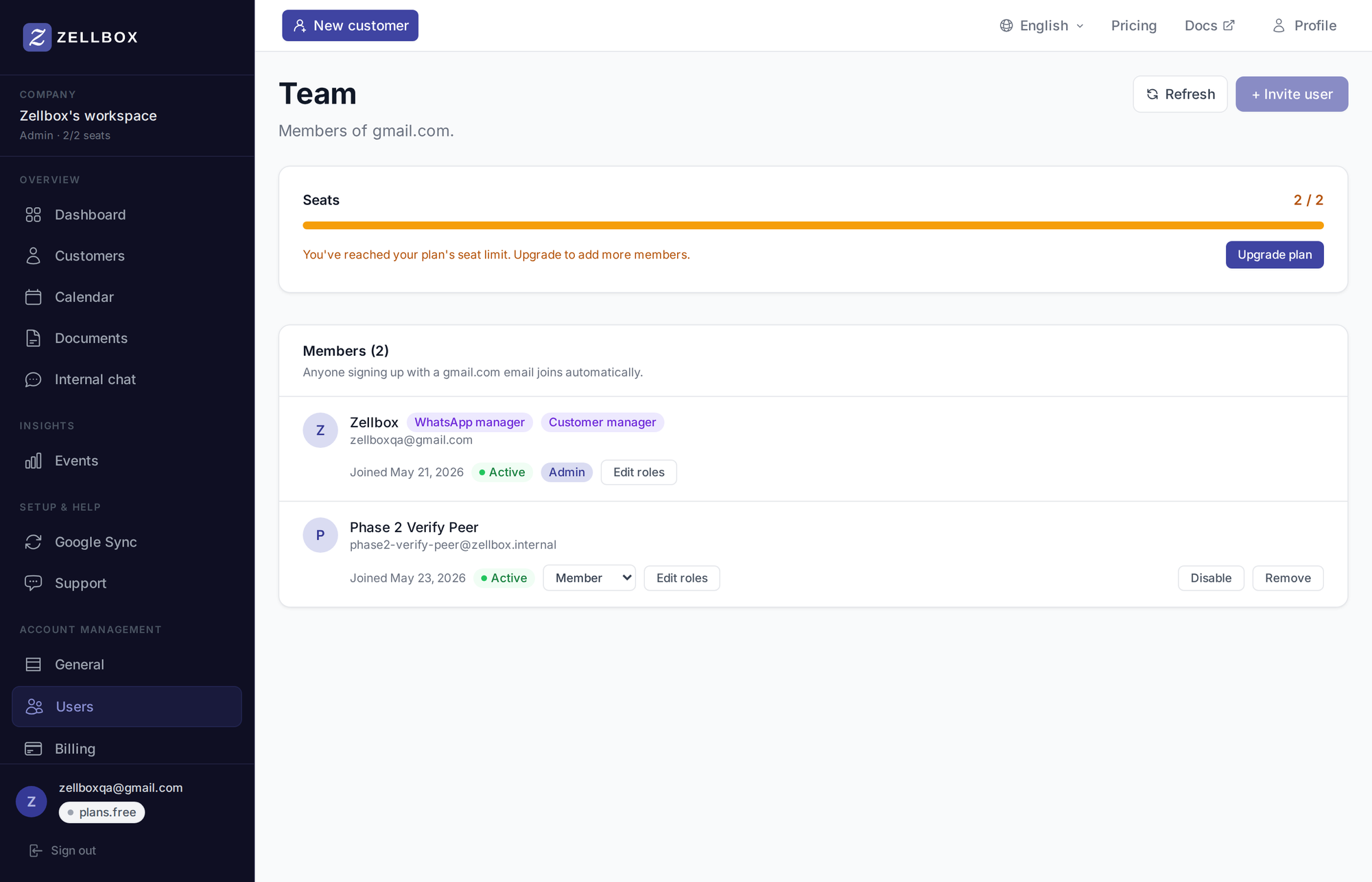
Inviting someone
- Click + Invite user.
- Enter their email address.
- Optionally add a personal message that goes into the invite email.
- Click Send invitation. They'll receive an email with a sign-up link that drops them straight into your workspace as a
member.
After they accept, change their system role from the Tier chip on their row.
System roles
A workspace operator's system role decides which admin surfaces they can reach. Pick one per member.
- Admin — full access. Renames the workspace, invites + removes teammates, sets other members' roles, edits billing details, manages API keys, configures workspace defaults.
- Privileged — senior operator. Does everything a member can, plus all CRM operations across the workspace: create / edit / archive any customer, see every customer in the list (not just their own), upload + delete workspace documents, see workspace- wide pending replies + insights, re-assign a customer to a different manager. Cannot manage the team, change billing, rename the workspace, or alter workspace defaults.
- Member — day-to-day operator. Sees and acts on the customers they own. Cannot create or edit customers, cannot upload workspace documents, sees only their own pending replies + insights.
CRM roles
Each member can additionally carry one or more CRM roles. They gate specific operational capabilities:
- Customer manager — only members with this role appear in the Assigned-manager picker on the customer + event forms. A workspace with zero customer-managers has an empty owner picker.
- WhatsApp manager — gates the WhatsApp surface entirely. Members without this role don't see the WhatsApp row-buttons on customers, can't open the chat popup, and the dashboard "Waiting for your reply" widget is hidden for them.